Amazon Simple Storage Service - S3
- Amazon S3 = Simple Storage Service.
- One of the main building blocks of AWS.
- Marketed as infinitely scaling storage.
- Backbone of many websites and integrated by many AWS services.
Use Cases of Amazon S3
- Backup & Storage (files, disks, etc.).
- Disaster Recovery (replicate data to another region for failover).
- Archival (cheap storage with Glacier).
- Hybrid Cloud Storage (extend on-premises storage to the cloud).
- Hosting applications/media (e.g., videos, images).
- Data Lake (store massive datasets for big data analytics).
- Delivering Software Updates.
- Hosting Static Websites.
Examples:
- Nasdaq stores 7 years of data in S3 Glacier.
- Sysco runs analytics and gains insights from S3.
Buckets
- Buckets = top-level containers (like directories).
- Objects = files stored inside buckets.
- Buckets require a globally unique name across all AWS accounts and regions.
- Buckets are region-specific (must be created in a chosen AWS region).
Naming rules for S3 buckets:
- No uppercase, no underscores.
- Length: 3 to 63 characters.
- Cannot look like an IP address.
- Must start with lowercase letter or number.
- Allowed: letters, numbers, hyphens.
Objects
- Objects = files stored in buckets.
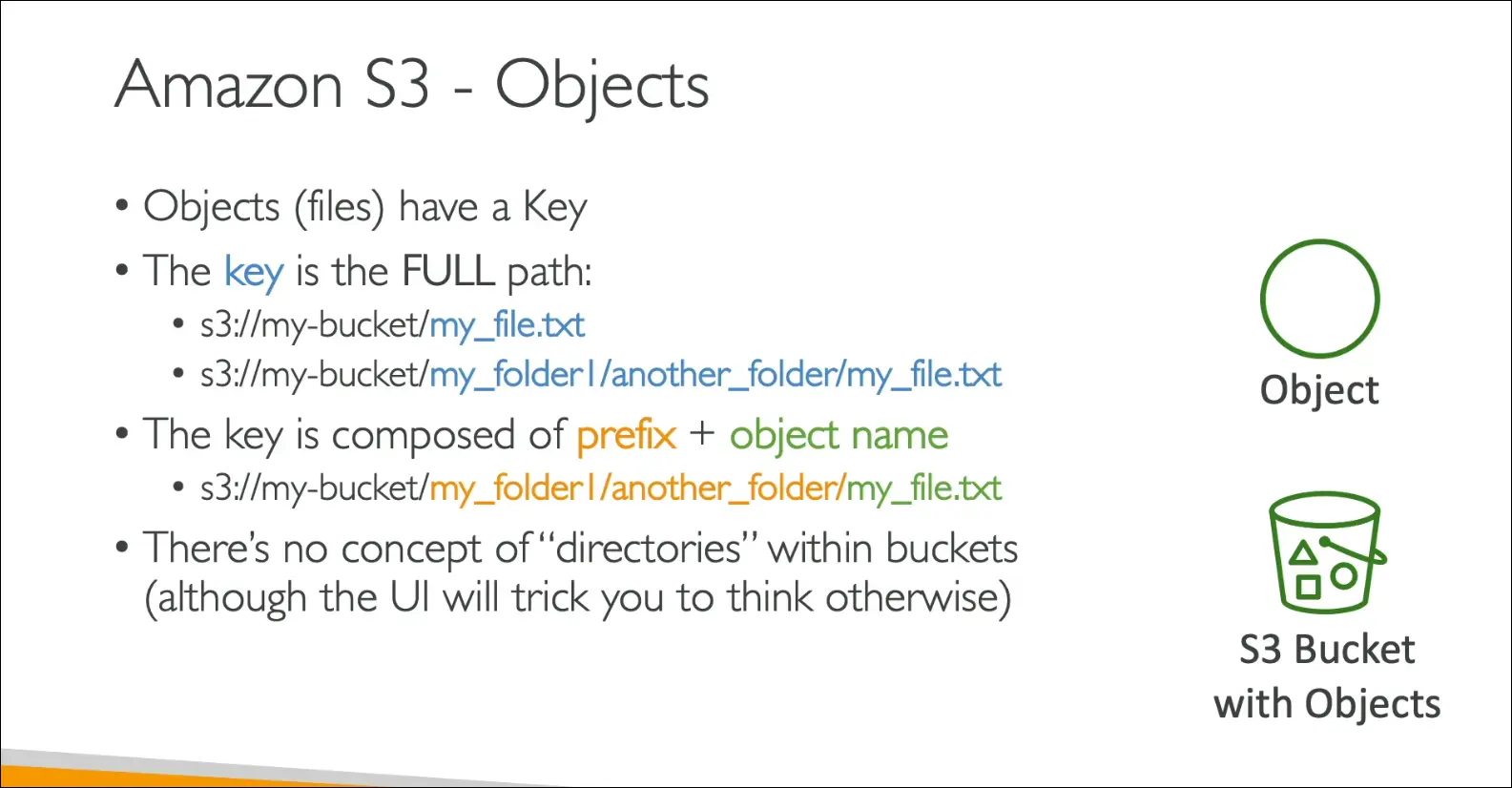
- Identified by a key (full path of the file).
Key Structure:
- Example:
myfile.txtmyfolder1/anotherfolder/myfile.txt
- Key = prefix + object name.
- S3 does not actually have directories, only keys with slashes (UI simulates folders).
Object Details
- Value = content of the file.
- Max size = 5 TB (5,000 GB).
- For files >5 GB, must use Multi-part Upload (splits file into parts).
Metadata:
- Key-value pairs (system-defined or user-defined).
- Example: content type, custom labels.
Tags:
- Up to 10 tags (Unicode key-value pairs).
- Useful for security, lifecycle policies, and organization.
Versioning:
- Objects can have a version ID if versioning is enabled.
Key Takeaways
- S3 is a core AWS service with many real-world use cases.
- Buckets are region-specific but globally unique in naming.
- Objects are identified by keys (prefix + name).
- Files up to 5 TB, multi-part upload required for >5 GB.
- Supports metadata, tags, and versioning.
Creating an S3 Bucket
- Go to Amazon S3 → create a bucket.
- Region: Choose the AWS region where you want the bucket. S3 shows all your buckets across all regions.
- Bucket type: If available, choose General Purpose. If you don’t see the option, it defaults to General Purpose.
(Directory buckets exist but are not in scope for the exam.) - Bucket name: Must be globally unique across all AWS accounts and regions. Example:
stephane-demo-s3-v5.
Bucket Settings
- Object ownership (ACLs): Keep ACLs disabled (recommended for security).
- Block Public Access: Keep enabled to prevent public exposure.
- Versioning: Disabled for now (can be enabled later).
- Tags: Not needed here.
- Default encryption: Use SSE-S3 (Amazon S3 managed keys). Enable Bucket Key.
- So far, the only custom setting is the bucket name.
Uploading an Object
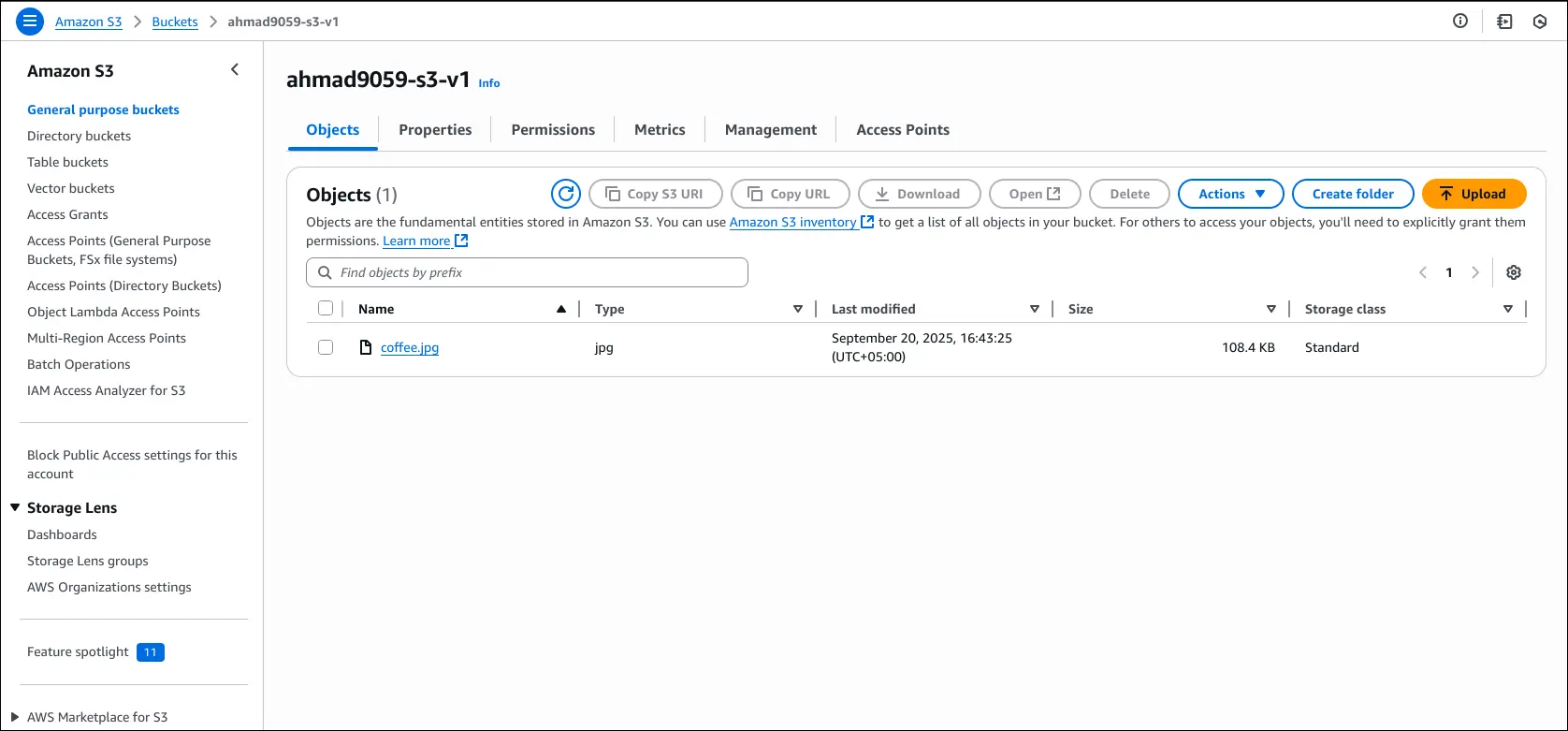
- Go to your bucket → Upload → add a file (
coffee.jpgexample). - The file is now visible under Objects in the bucket.
Accessing the Object
- S3 Console “Open” button → works (uses a temporary signed URL).
- Public Object URL → gives Access Denied (because bucket blocks public access).
- Why?
- The public URL does not work unless you explicitly make the object public.
- The working URL is an S3 Pre-Signed URL, which includes your AWS credentials as a temporary signature. It proves you are authorized to access the object.
Key Takeaways for AWS CCP Exam
- Bucket names must be globally unique.
- Keep ACLs disabled and block public access for security.
- Default encryption is often SSE-S3.
- Objects can be accessed via Pre-Signed URLs, not by default public URLs.
Types of Security in S3
- User-Based Security
- IAM Policies (attached to users or roles).
- Authorize which API calls a user/role can perform.
- Resource-Based Security
- S3 Bucket Policies: JSON documents attached at the bucket level.
- Allow cross-account access.
- Make a bucket public.
- Force encryption at upload.
- Access Control Lists (ACLs):
- Object ACLs (fine-grained, can be disabled).
- Bucket ACLs (less common, can also be disabled).
- S3 Bucket Policies: JSON documents attached at the bucket level.
- Encryption
- Another layer of security by encrypting objects with keys.
IAM Principal Access Rules
An IAM principal can access an S3 object if:
- The IAM policy allows it, or
- The resource (bucket) policy allows it,
- And there is no explicit deny.
Structure of an S3 Bucket Policy
- Resource → Defines which bucket/objects the policy applies to. (
*means all objects). - Effect →
AlloworDeny. - Action → Specific API actions (e.g.,
s3:GetObject). - Principal → Who the policy applies to (
*means anyone).
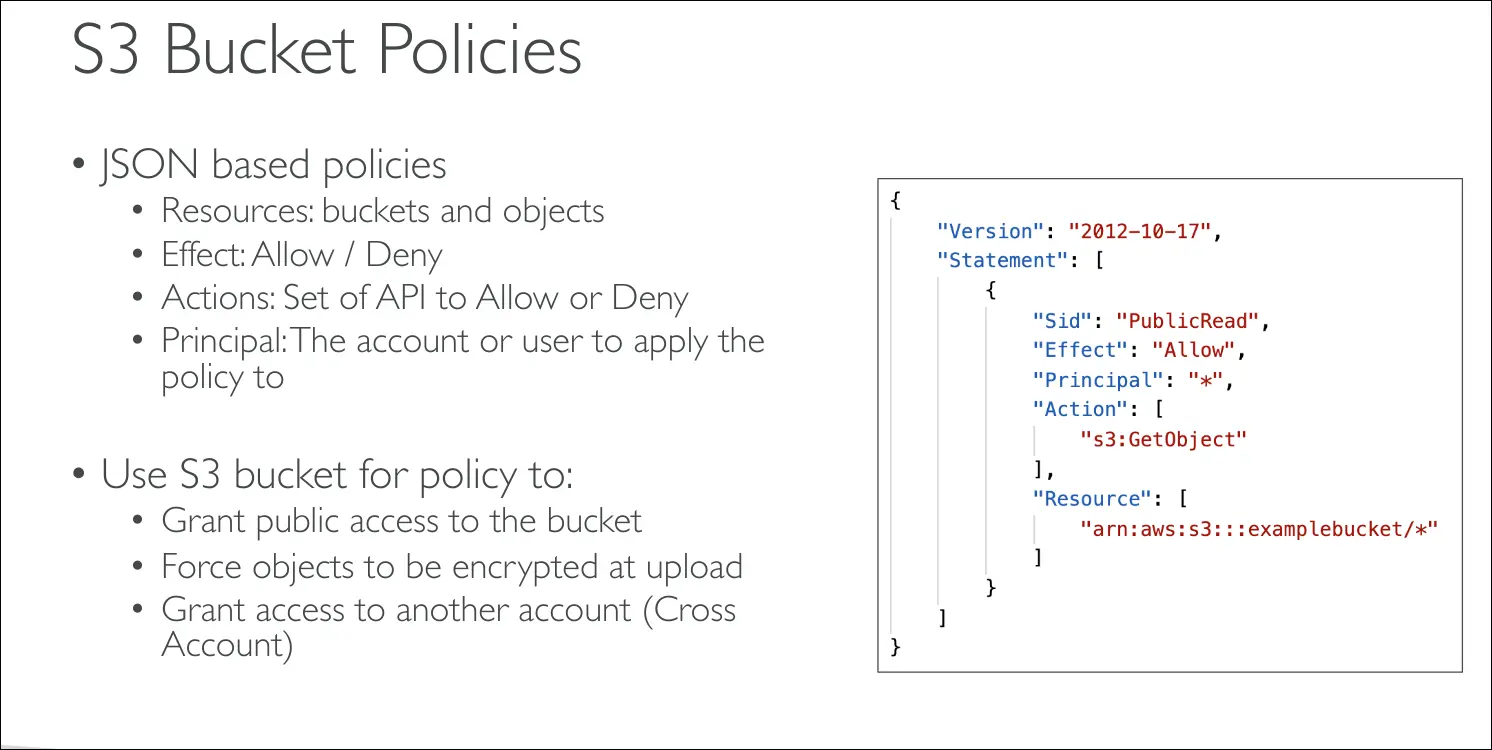
📌 Example: A policy allowing s3:GetObject for * = public read access.
Common Use Cases
- Public Access → Bucket policy with
Principal: *andAction: s3:GetObject. - IAM User in same account → Use IAM permissions.
- EC2 Instance access → Use IAM Role, not IAM User credentials.
- Cross-Account Access → Use bucket policy granting permissions to another AWS account’s IAM user/role.
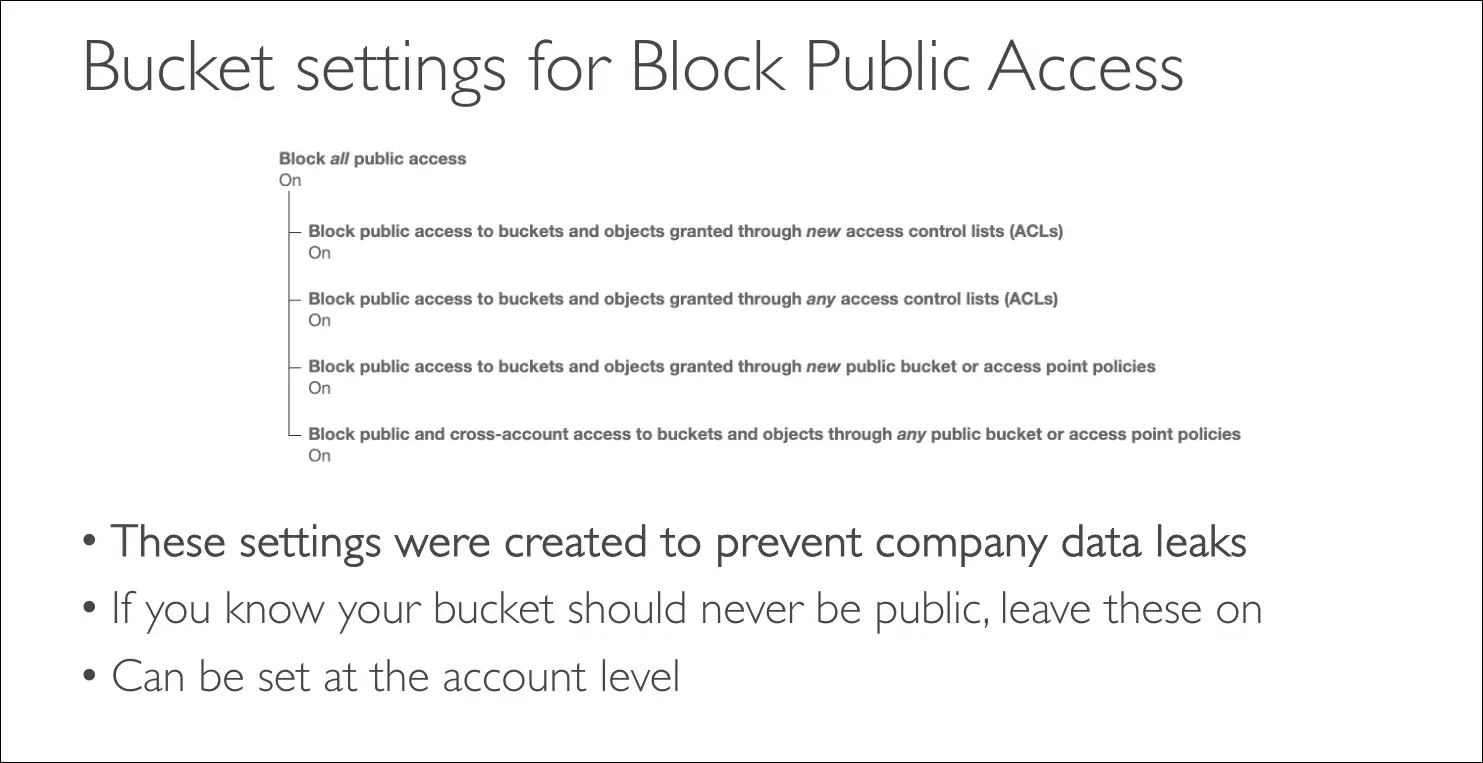
Block Public Access
- Extra security setting at bucket or account level.
- If enabled, even a bucket policy allowing public access won’t work.
- Purpose: prevent accidental company data leaks.
- Best practice: keep it on unless you explicitly want public access.
Key Takeaways for AWS CCP Exam
- S3 security can be user-based (IAM policies) or resource-based (bucket policies, ACLs).
- Bucket policies are the most common modern approach.
- Access decision = IAM + Resource policy – Explicit deny overrides.
- Block Public Access is an extra safeguard against misconfiguration.
- Use IAM roles for EC2 access, not IAM users.
- Use bucket policies for cross-account access.
Key Points on Making an S3 Object Public with a Bucket Policy
- Public Access Settings
- By default, all S3 buckets block public access.
- You must first go to Permissions tab → Block Public Access settings and disable blocking (only if you truly intend to make data public, otherwise it’s dangerous).
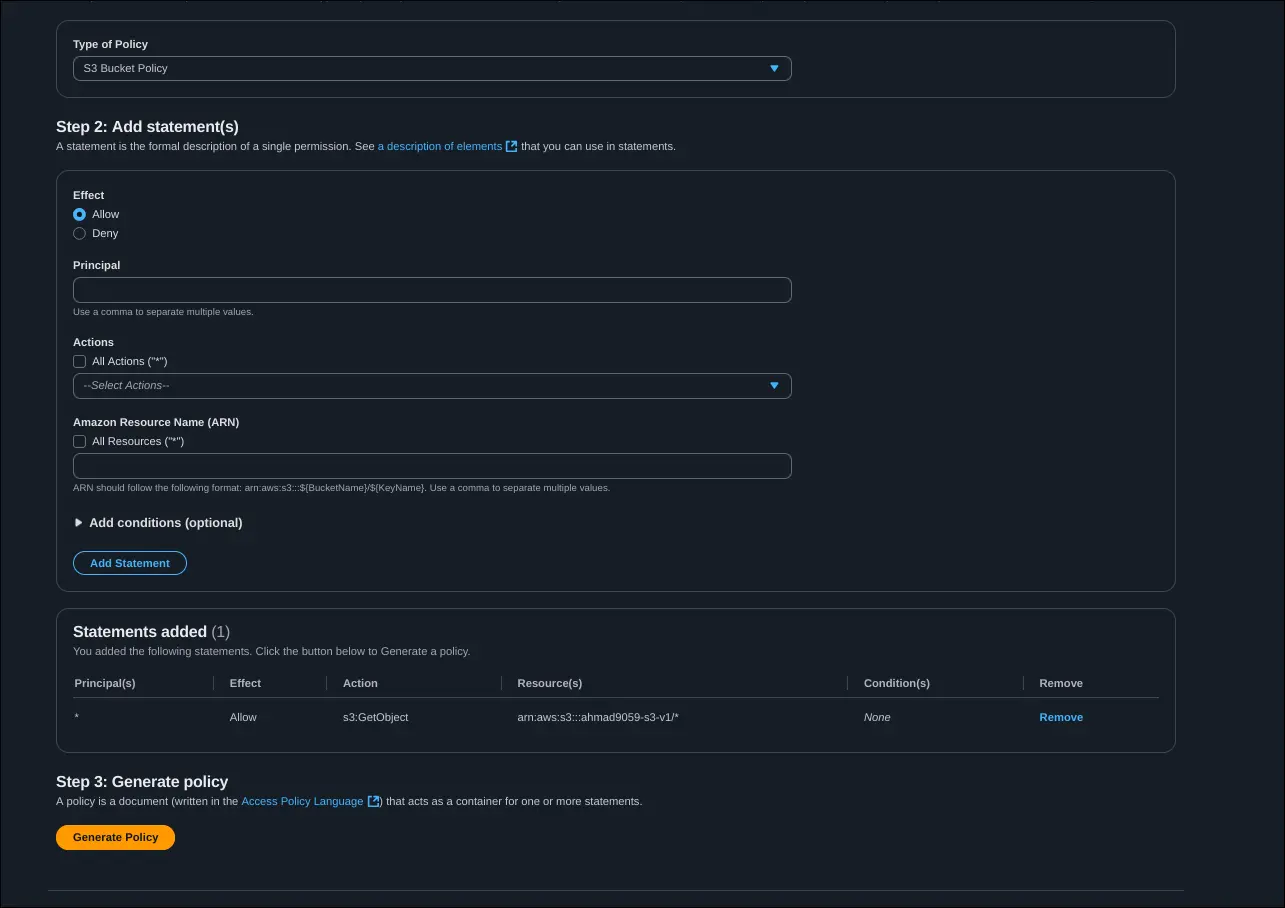
- Bucket Policy Setup
- Navigate to Bucket policy in the Permissions tab.
- Use the AWS Policy Generator to create a policy.
- Configuration:
- Effect: Allow
- Principal:
*(anyone) - Action:
s3:GetObject - Resource:
arn:aws:s3:::<bucket-name>/*- The
/*ensures the policy applies to all objects inside the bucket, not just the bucket itself.
- The
- Why the Slash-Star (
/*)s3:GetObjectapplies to objects inside the bucket, not the bucket itself.- Example:
arn:aws:s3:::my-bucket/*allows access to every file insidemy-bucket.
- Applying the Policy
- Copy and paste the generated policy into the bucket policy editor.
- Save changes.
- Result
- Any object in the bucket (example:
coffee.jpg) is now accessible via its Object URL. - You can test by copying the URL and opening it in the browser — the image/file will be publicly visible.
- Any object in the bucket (example:
Warning: Making an entire bucket public is risky and can cause data leaks if sensitive data is uploaded. Always use bucket policies carefully.
Hosting Static Websites with Amazon S3
S3 as a Static Website Host
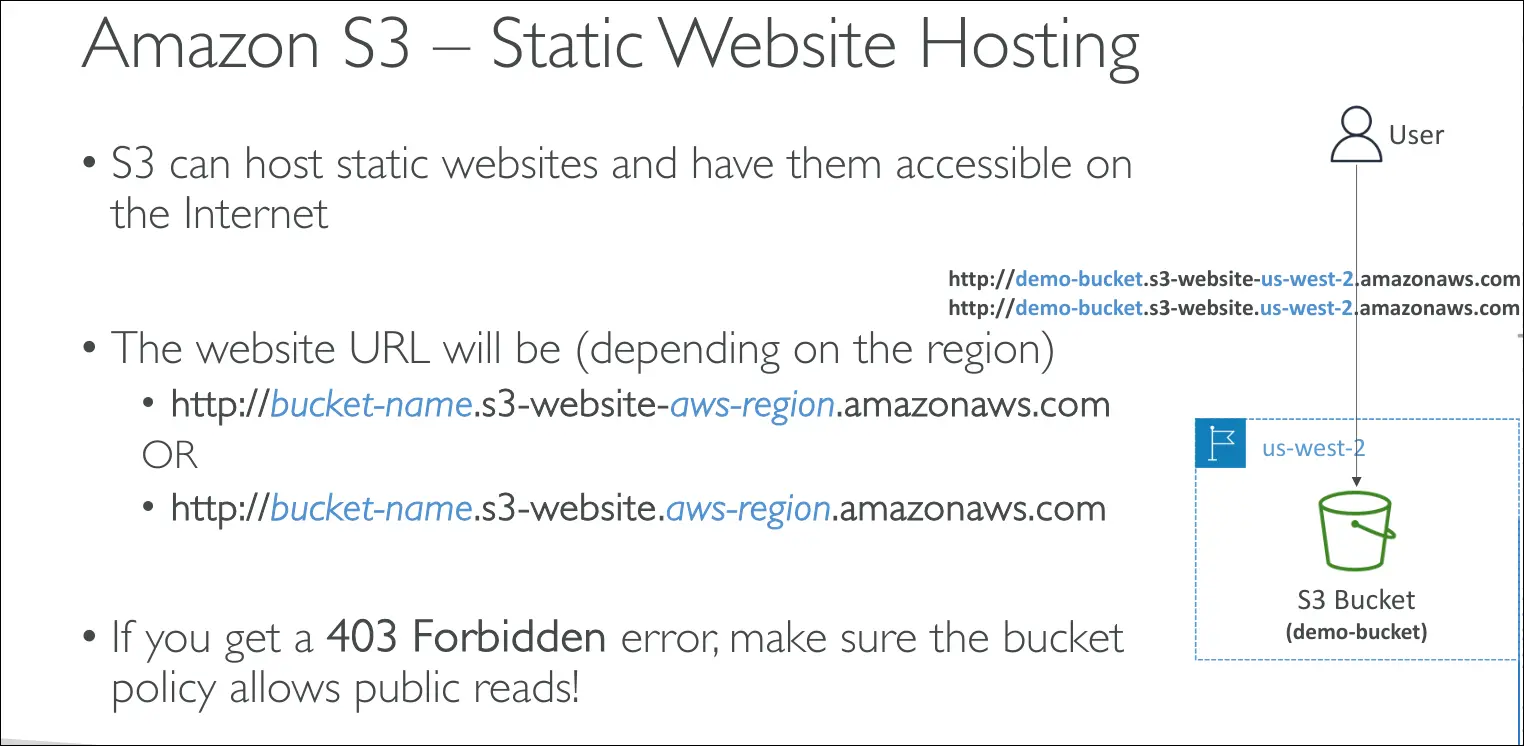
- Amazon S3 can host static websites (HTML, CSS, JavaScript, images).
- Once enabled, your website becomes accessible through a URL that depends on your AWS region.
- Some regions use
s3-website-region.amazonaws.com - Others use
s3-website.region.amazonaws.com
- Some regions use
Bucket Setup
- Create an S3 bucket and upload your website files (HTML, CSS, JS, images, etc.).
- Enable Static Website Hosting in the bucket properties.
- Specify an index document (example:
index.html) and optionally an error document (example:error.html).
Public Access Requirement
- Static websites on S3 require the bucket and its objects to be publicly readable.
- Without this, users will see a 403 Forbidden error.
Bucket Policy
- To fix access errors, you must attach a bucket policy that allows public reads (
s3:GetObject). - This ensures anyone can access your website files from the browser.
- To fix access errors, you must attach a bucket policy that allows public reads (
⚠️ Important: Only use public access for buckets intended for websites. Never make private or sensitive data buckets public.
Steps to Enable S3 Static Website Hosting
- Upload Website Files
- Add files to your S3 bucket (example:
coffee.jpg,beach.jpg). - Later, also upload your
index.html(homepage).
- Add files to your S3 bucket (example:
- Enable Static Website Hosting
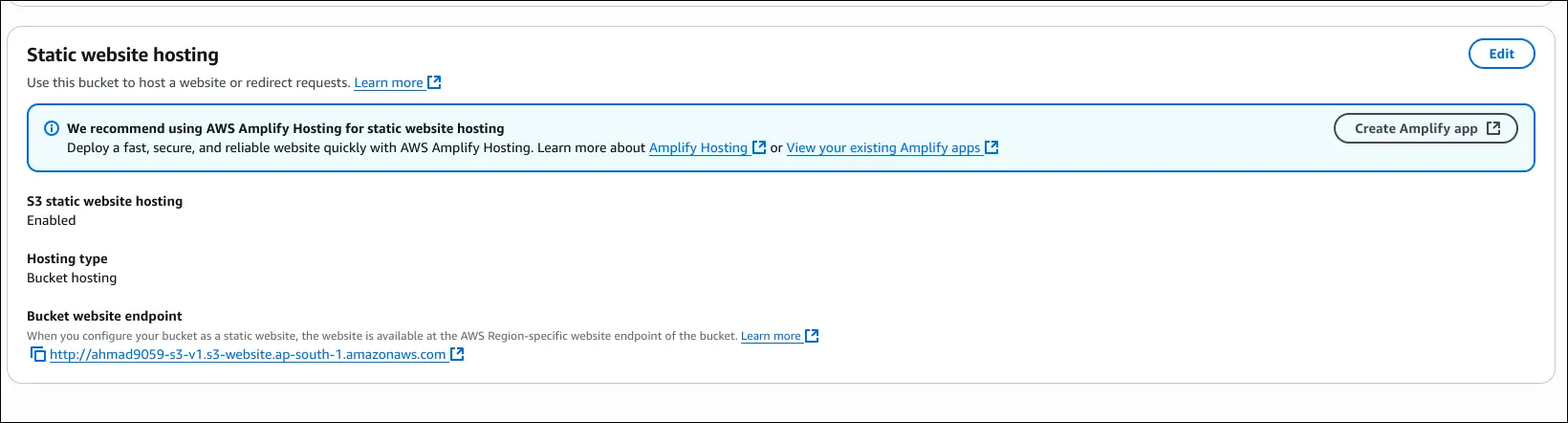
- Go to Bucket → Properties → Static Website Hosting → Edit.
- Select Enable and choose Host a static website.
- Specify:
- Index document →
index.html(homepage). - Error document (optional).
- Index document →
- Save changes.
- Public Read Requirement
- AWS warns that all files must be publicly readable for website hosting to work.
- This is handled with a bucket policy (already configured in earlier step).
- Access the Website
- After enabling, AWS provides a Bucket Website Endpoint URL.
http://<bucket-name>.s3-website-<region>.amazonaws.com- Opening this URL loads
index.html, which can display text and embedded images.
- Verify Object Access
- Files like
coffee.jpgandbeach.jpgare accessible via their public URLs. - You can switch images in the HTML and see them load properly.
- Files like
Result: Your S3 bucket is now a working static website. The bucket policy allows public reads, so both the index.html and image files load in the browser.
Amazon S3 Versioning
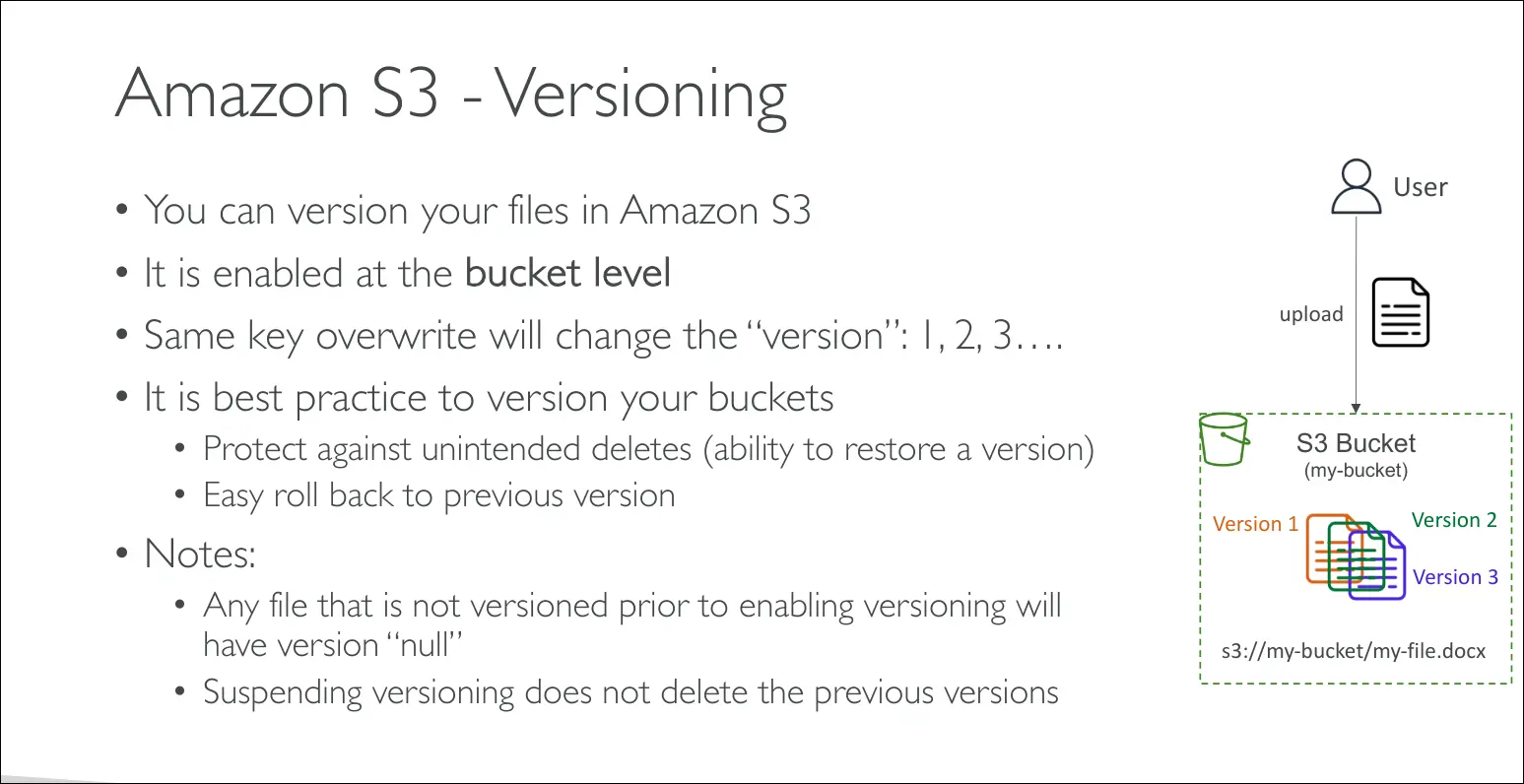
- What It Is
- Versioning is a bucket-level feature in S3.
- Every time you upload or overwrite a file (same key), S3 stores it as a new version (v1, v2, v3…).
- Earlier versions remain available and recoverable.
- Benefits
- Protects against unintended deletes
- When you delete an object, S3 just adds a delete marker instead of fully removing it.
- You can restore previous versions later.
- Rollback support
- Easily restore a file to a previous version (e.g., revert to a state from 2 days ago).
- Safe overwrites
- New uploads don’t overwrite old data, they create a new version.
- Important Notes
- Files uploaded before enabling versioning get version ID = null.
- Suspending versioning does not delete existing versions, it just stops creating new ones.
(Safe operation, versions are preserved.)
- Best Practice
- It’s recommended to enable versioning for buckets that store important or frequently updated files, since it provides protection and recovery options.
Cost note: Each version is stored separately, so versioning may increase storage costs.
Enabling Versioning
- Go to bucket properties → Bucket Versioning → Enable.
- Once enabled, any overwritten files will create new versions, not overwrite the old ones.
Updating Objects
- Uploading
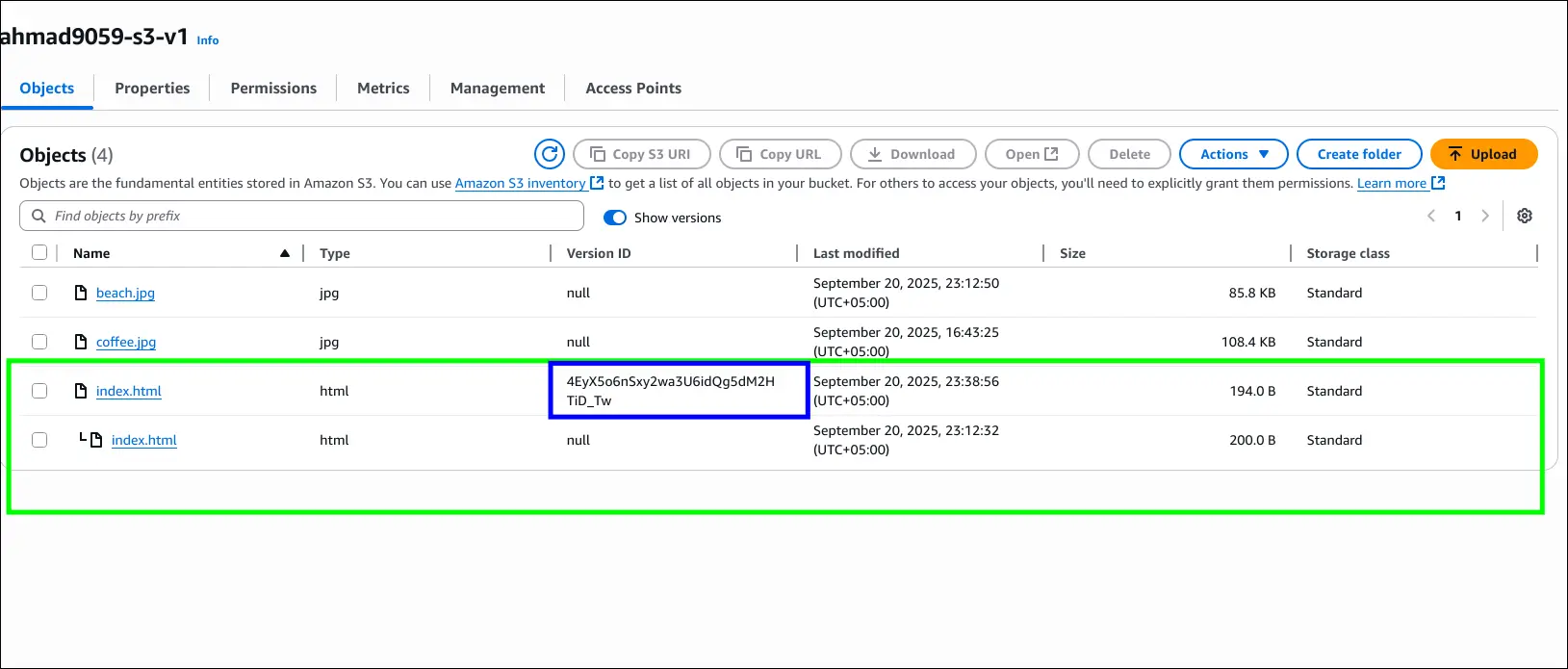
index.htmlagain (changed from “I love coffee” to “I REALLY love coffee”) creates a new version. - Using Show versions reveals:
- Files uploaded before versioning have version ID = null.
- New uploads after enabling versioning get unique version IDs.
Rolling Back
- To revert, select the older version ID and permanently delete the newer version.
- After this, the file goes back to its older content (“I love coffee”).
Delete Behavior
- Deleting without Show versions
- Adds a delete marker instead of removing the actual file.
- File appears deleted, and accessing it gives 404 Not Found.
- The object is still in S3 under previous versions.
- Restoring after delete marker
- Remove the delete marker (permanent delete).
- This restores the last valid version of the file.
Key Takeaways
- Version IDs track changes, including overwrite and delete.
- Permanent delete removes a specific version forever.
- Delete marker hides the object without removing older versions.
- Versioning makes rollback and recovery possible.
Amazon S3 Replication
Types
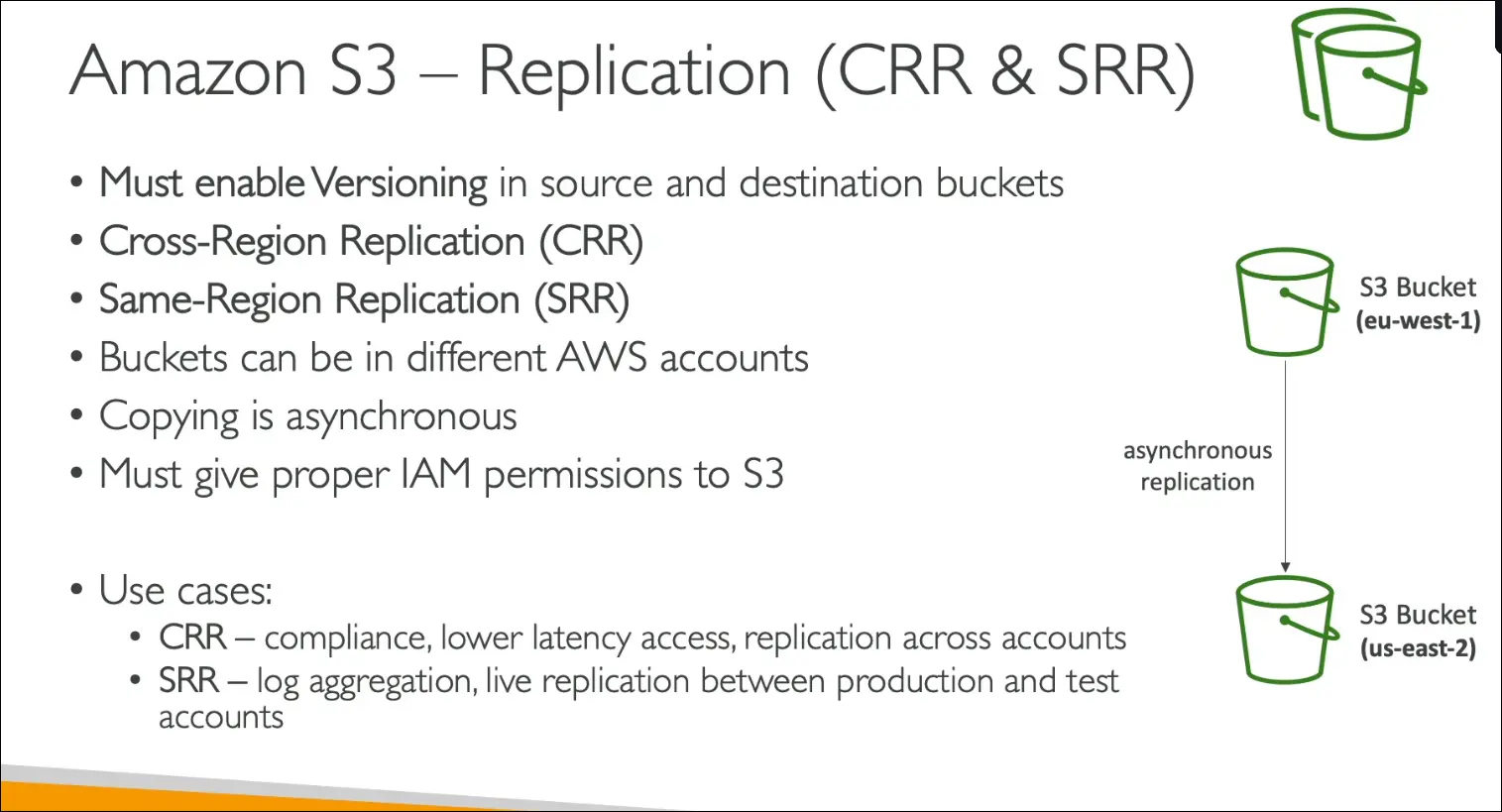
- CRR (Cross-Region Replication): Replicates objects to a bucket in a different region.
- SRR (Same-Region Replication): Replicates objects to a bucket in the same region.
Requirements
- Versioning must be enabled on both source and destination buckets.
- Buckets can be in the same or different AWS accounts.
- Replication is asynchronous (happens in the background).
- Proper IAM permissions are required so S3 can read/write objects between buckets.
Use Cases
- CRR:
- Compliance requirements
- Lower latency access by replicating data closer to users
- Replicating data across different accounts
- SRR:
- Aggregating logs across multiple S3 buckets
- Replicating between production and test environments
Steps to Set Up Replication
- Create Source Bucket (Origin)
- Example:
s3-stephane-bucket-origin-v2in eu-west-1. - Enable versioning (required for replication).
- Example:
- Create Destination Bucket (Replica)
- Example:
s3-stephane-bucket-replica-v2in us-east-1 (can be same or different region). - Enable versioning here too.
- Example:
- Upload Initial File
- Upload
beach.jpegto origin bucket. - Not yet replicated, since replication is not set up.
- Upload
- Configure Replication Rule
- Go to Management → Replication rules in origin bucket.
- Create a rule: demo replication rule.
- Apply to all objects.
- Select destination bucket.
- Create IAM role for S3 replication.
- Decide whether to replicate existing objects:
- Default: No, only new uploads replicate.
- To replicate old objects, use S3 Batch Operations.
Testing Replication
- Upload
coffee.jpegto origin bucket. - Within ~10 seconds, file appears in replica bucket.
- Version IDs are preserved between source and destination.
- To replicate an older file (
beach.jpeg), re-upload it. - New version (
DK2) gets created and is replicated to replica bucket with the same version ID.
Key Takeaways
- Versioning must be enabled on both buckets.
- Replication works only for new uploads, unless batch operations are used.
- Version IDs are preserved, ensuring consistency.
- Replication is asynchronous (delay of a few seconds).
- Can be Cross-Region Replication (CRR) or Same-Region Replication (SRR).
Amazon S3 Storage Classes
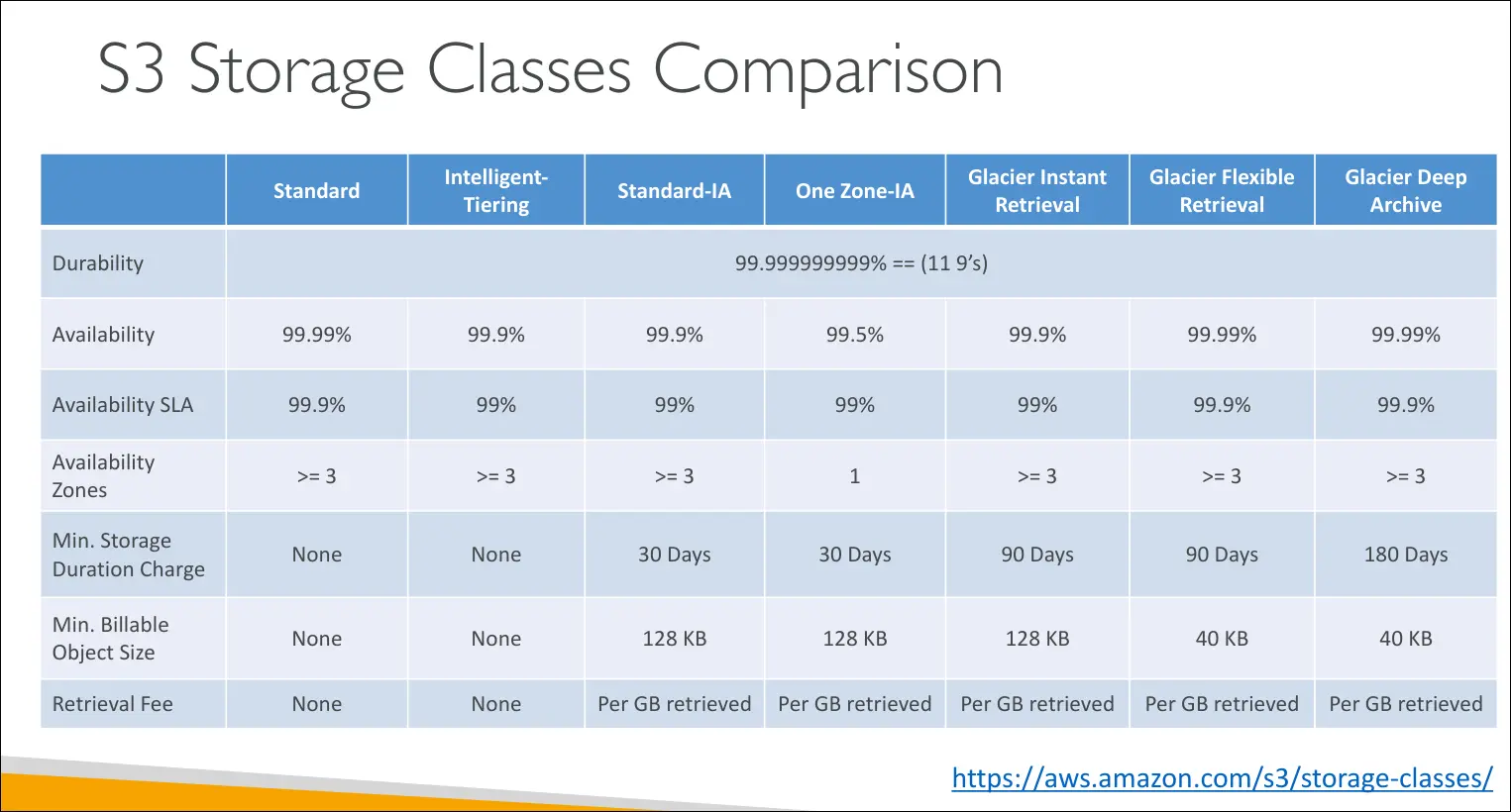
- Durability: 11 nines (99.999999999%) across all S3 storage classes.
- Example: if you store 10 million objects, you might lose 1 object every 10,000 years.
- Availability: Varies by storage class. Determines how often service might be down.
- Example: S3 Standard has 99.99% (≈53 minutes downtime per year).
Storage Classes
S3 Standard – General Purpose
- Availability: 99.99%
- Use case: Frequently accessed data
- Features: Low latency, high throughput, sustains 2 facility failures
- Examples: Big data analytics, mobile apps, gaming apps, content distribution
S3 Standard-IA (Infrequent Access)
- Availability: 99.9%
- Use case: Data less frequently accessed but must be retrieved quickly
- Cost: Lower storage cost, but retrieval costs apply
- Examples: Disaster recovery, backups
S3 One Zone-IA
- Availability: 99.5% (data stored in a single AZ)
- Durability: Same 11 nines within the AZ, but lost if AZ is destroyed
- Use case: Secondary backup copies, data you can recreate
S3 Glacier Classes (Archive & Backup)
- All Glacier classes have retrieval costs and minimum storage duration
a. Glacier Instant Retrieval
- Retrieval: Milliseconds
- Use case: Data accessed quarterly
- Minimum duration: 90 days
b. Glacier Flexible Retrieval (formerly Glacier)
- Retrieval options:
- Expedited: 1–5 minutes
- Standard: 3–5 hours
- Bulk: 5–12 hours (free)
- Minimum duration: 90 days
c. Glacier Deep Archive
- Retrieval:
- Standard: 12 hours
- Bulk: 48 hours
- Minimum duration: 180 days
- Lowest cost storage
S3 Intelligent-Tiering
- Automatically moves objects between tiers based on usage
- Tiers include:
- Frequent Access (default)
- Infrequent Access (30+ days)
- Archive Instant Access (90+ days)
- Archive Access (configurable, 90–700+ days)
- Deep Archive Access (configurable, 180–700+ days)
- Cost: Small monitoring + auto-tiering fee, but no retrieval charges
- Use case: Unknown or changing access patterns
Key Exam Tips
- Durability is always the same (11 nines)
- Availability decreases with cheaper storage classes
- Glacier classes = archival, lower cost, longer retrieval times
- Intelligent-Tiering = hands-off optimization
Demo Walkthrough of Storage Classes
- Create Bucket
- Name:
s3-storage-classes-demos-2022 - Any region works.
- Name:
- Upload File
- Example:
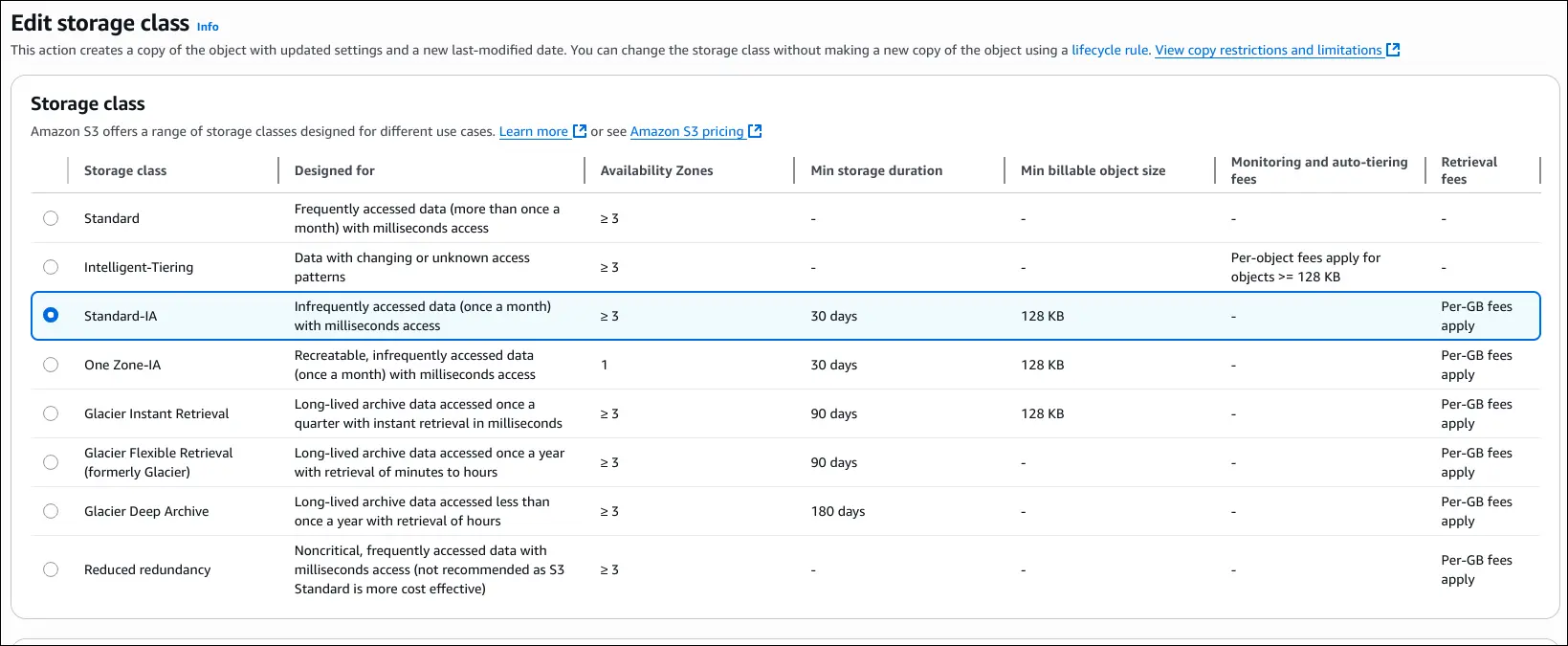
coffee.jpeg. - Under properties → storage class, AWS shows all available storage classes, their AZ redundancy, minimum storage duration, minimum billable size, and monitoring/auto-tiering fees.
- Example:
- Storage Classes Options
- S3 Standard (default, multi-AZ).
- Intelligent-Tiering (auto-moves objects based on access patterns).
- Standard-IA (low cost, infrequent access, multi-AZ).
- One Zone-IA (single AZ, data can be lost if AZ fails).
- Glacier Classes:
- Glacier Instant Retrieval
- Glacier Flexible Retrieval
- Glacier Deep Archive
- Reduced Redundancy (deprecated).
Changing Storage Class
- You can manually edit a file’s storage class.
- Example flow:
- Upload file to Standard-IA.
- Change it later to One Zone-IA.
- Change again to Glacier Instant Retrieval or Intelligent-Tiering.
- Each change updates the object’s storage class in-place.
Automating Transitions with Lifecycle Rules
- Go to Bucket → Management → Lifecycle rules.
- Create rule (e.g.,
DemoRule) that applies to all objects. - Example transition sequence:
- Move to Standard-IA after 30 days.
- Move to Intelligent-Tiering after 60 days.
- Move to Glacier Flexible Retrieval after 180 days.
- Lifecycle rules automatically transition objects across storage classes to optimize cost.
Key Takeaways
- AWS S3 lets you choose from multiple storage classes depending on access frequency, latency needs, and durability.
- Storage classes can be changed manually or automatically using lifecycle rules.
- Glacier tiers are best for archival data with different retrieval speeds.
- Reduced Redundancy is deprecated and should not be used.
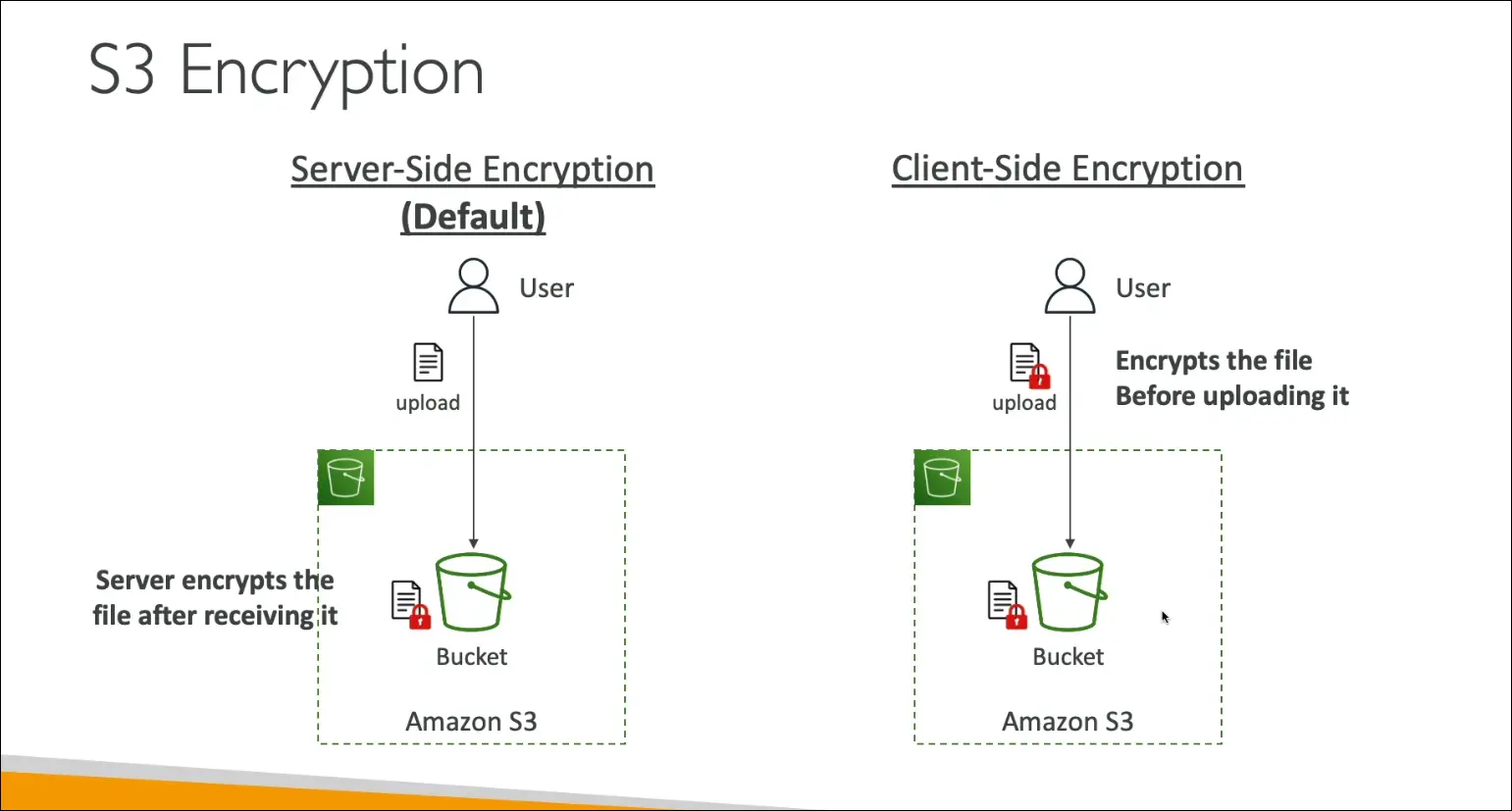
S3 Encryption Overview
Encryption protects data stored in Amazon S3. There are two main models:
1. Server-Side Encryption (SSE) (default)
- When you upload an object, Amazon S3 encrypts it after receiving it.
- The server (S3) performs the encryption and decryption.
- Enabled by default on all new buckets and uploads.
- Transparent to the user.
2. Client-Side Encryption (CSE)
- The user encrypts the data before uploading it to S3.
- The lock (encryption) happens on the client side.
- S3 just stores the already-encrypted object.
- User is responsible for key management.
Key Exam Point
- By default, S3 uses Server-Side Encryption (SSE).
- Client-Side Encryption (CSE) is available but not automatic.
IAM Access Analyzer for Amazon S3
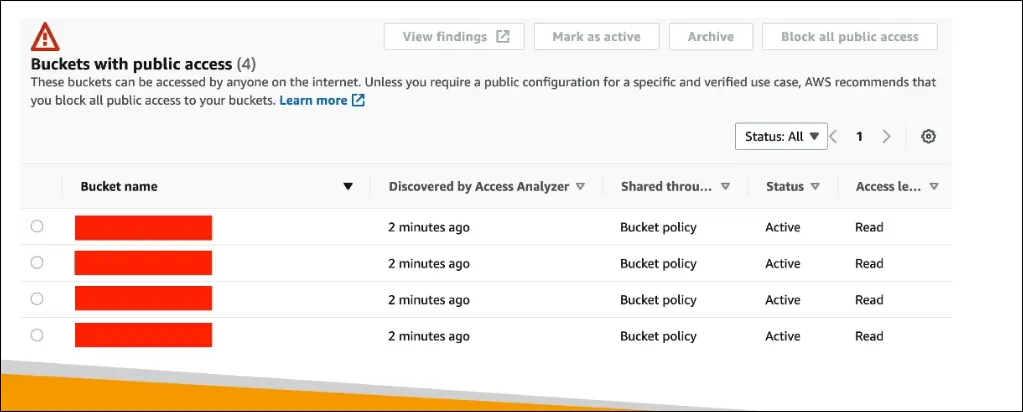
Purpose: A monitoring feature for Amazon S3 buckets to ensure that only intended users and accounts have access.
Functionality:
- Analyzes:
- S3 Bucket Policies
- S3 Access Control Lists (ACLs)
- S3 Access Point Policies
- Surfaces findings such as:
- Buckets that are publicly accessible
- Buckets shared with other AWS accounts
- Analyzes:
Usage:
- Lets you review access results and decide whether access is:
- Expected/normal
- A potential security issue (unintended sharing)
- Enables corrective actions if misconfigurations are found.
- Lets you review access results and decide whether access is:
Powered by: IAM Access Analyzer
- Identifies AWS resources shared with external entities across your account.
Key exam point: IAM Access Analyzer helps detect unintended access to S3 buckets by checking policies and ACLs, highlighting public or cross-account sharing.
Shared Responsibility Model for Amazon S3
AWS Responsibilities
- Infrastructure management: durability, availability, fault tolerance (S3 can sustain the loss of 2 facilities).
- Internal security: configuration management, vulnerability analysis.
- Compliance: ensures regulatory and compliance validation at the infrastructure level.
Customer Responsibilities
- Data management & configuration:
- Enable S3 Versioning if needed.
- Configure S3 Bucket Policies correctly to control access.
- Set up replication if desired.
- Security & monitoring:
- Enable logging and monitoring (optional, not default).
- Apply encryption for data at rest (SSE-S3, SSE-KMS, or client-side).
- Cost optimization: choose the right storage class (Standard, IA, Glacier, etc.) based on needs.
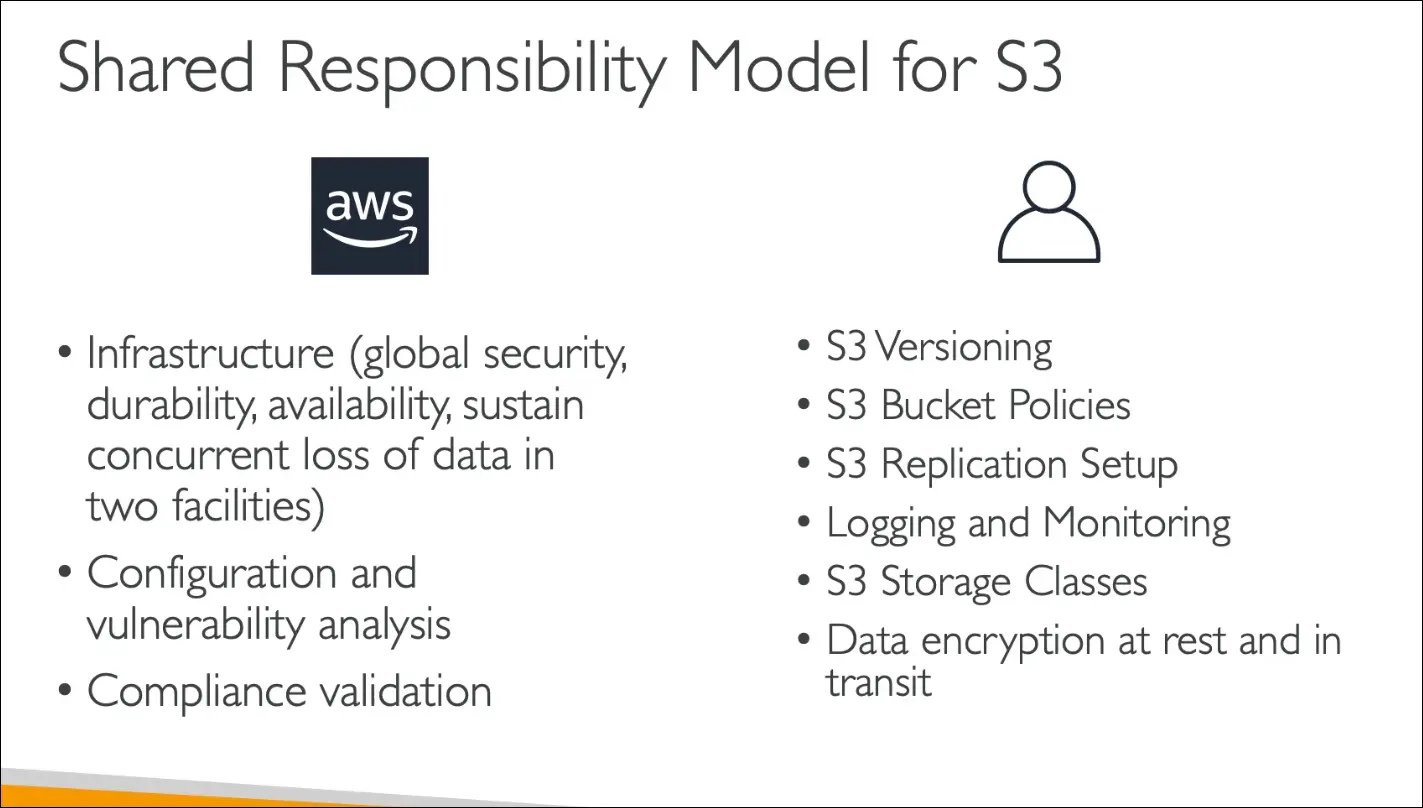
Exam tip: AWS secures the infrastructure of S3, while the customer secures data in S3 (access controls, policies, encryption, monitoring, and cost management).
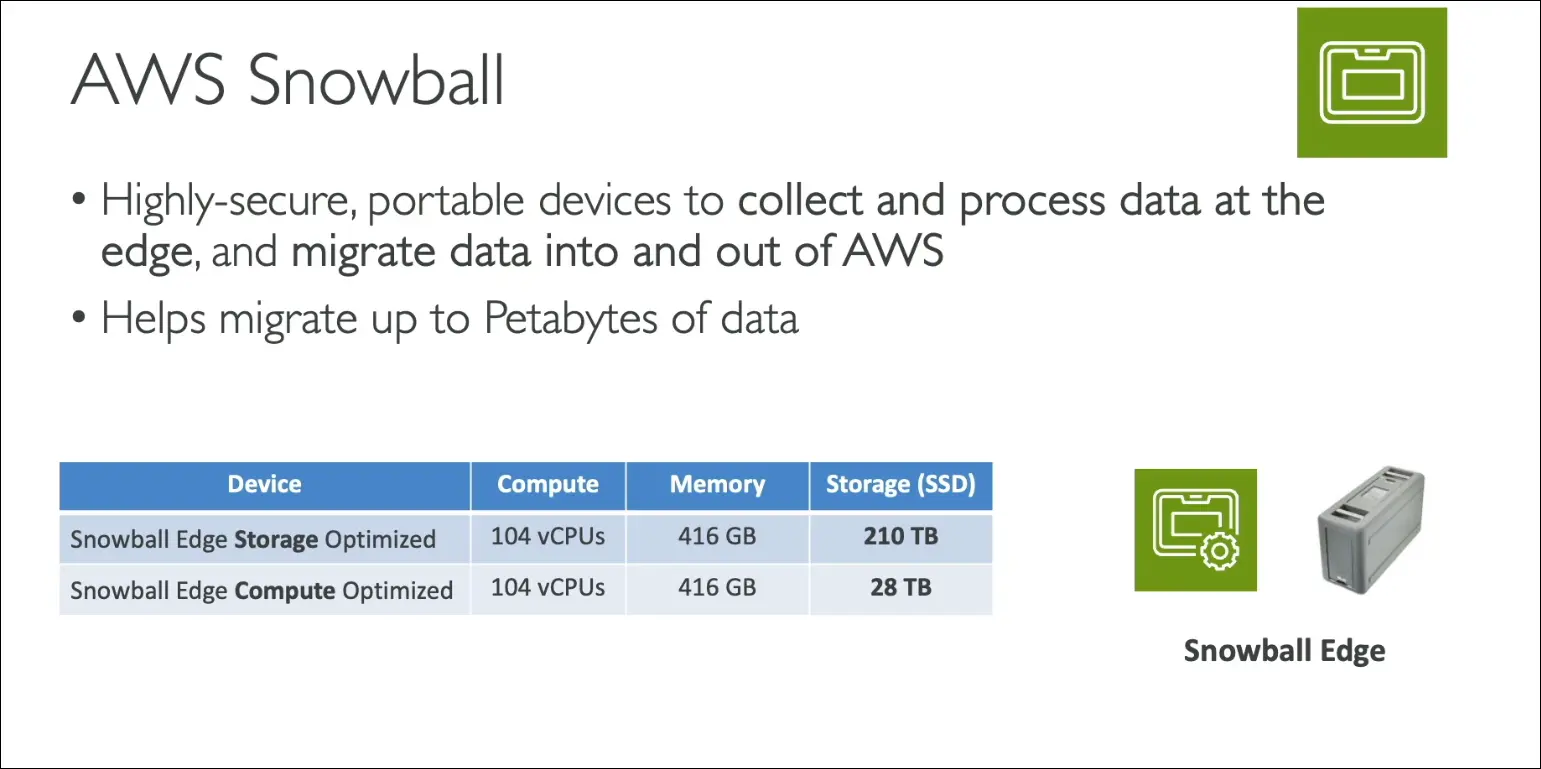
AWS Snowball
- A highly secure, portable device for:
- Collecting and processing data at the edge.
- Migrating large amounts of data in and out of AWS.
- Ideal for petabyte-scale data transfers where the network is slow, costly, or unstable.
Snowball Edge Device Types
- Edge Storage Optimized
- 210 TB storage.
- Best for large-scale data migrations.
- Edge Compute Optimized
- 28 TB storage.
- Designed for edge computing workloads.
- Can run EC2 instances or AWS Lambda functions directly on the device.
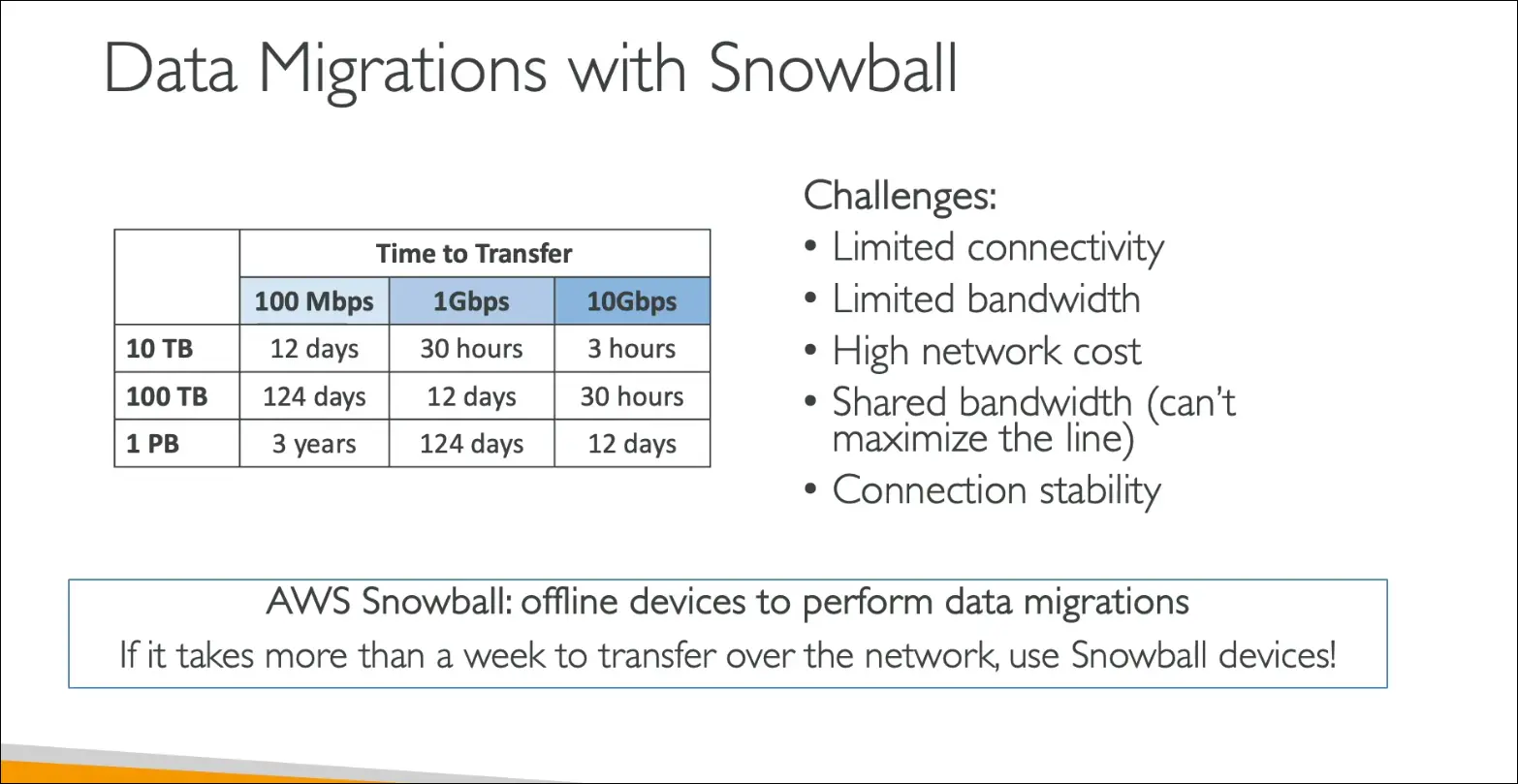
Data Migration Use Case
- Uploading directly to S3 uses internet bandwidth, which may be slow, costly, or unstable.
- Example: 100 TB transfer over 1 Gbps = ~12 days.
- With Snowball:
- AWS ships the physical device to you.
- You load data locally.
- Ship it back to AWS.
- AWS imports the data into your Amazon S3 bucket.
- Recommended when:
- Data transfer takes over a week by network.
- Bandwidth is limited or costly.
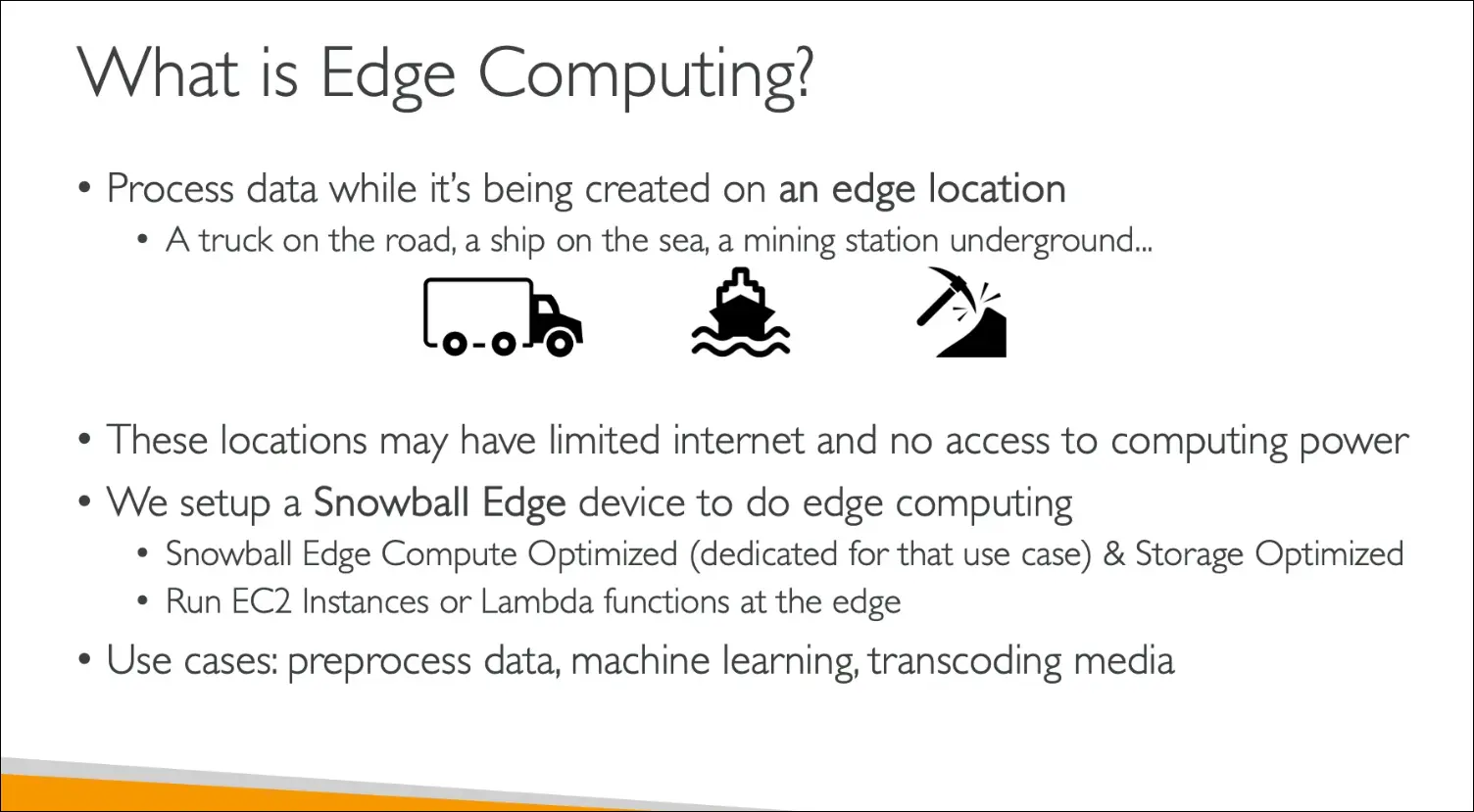
Edge Computing Use Case
- Suitable for environments with limited or no internet (trucks, ships, mines, remote stations).
- Process data locally on the Snowball before sending to AWS.
- Use cases:
- Pre-processing sensor data.
- Machine Learning inference at the edge.
- Media transcoding at the edge.
Exam Tip:
- Snowball Storage Optimized → Bulk data transfer.
- Snowball Compute Optimized → Edge computing + EC2/Lambda at the edge.
AWS Snowball Edge – Pricing
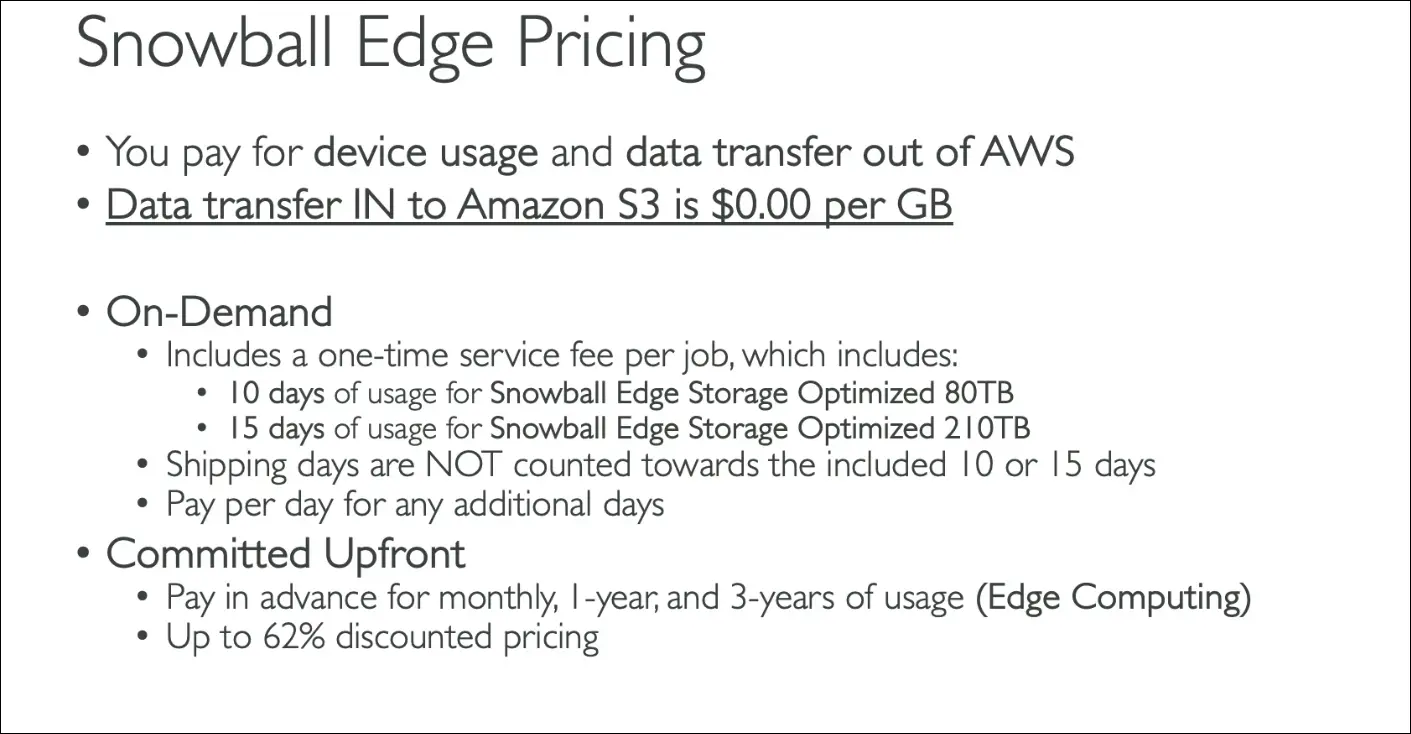
Data Transfer Costs
- Import into S3 → Free ($0 per GB).
- Export out of AWS (to Snowball) → Charged (standard AWS data transfer out fees apply).
Device Pricing Models
- On-Demand
- One-time service fee per job.
- Includes 10 days of usage (for 80 TB Snowball Edge Storage Optimized).
- Includes 15 days of usage (for 210 TB Snowball Edge).
- Shipping days not counted towards usage.
- Extra daily charges apply after included days.
- Shipping cost is free (AWS covers it both ways).
- Committed Upfront
- Pay in advance for monthly, 1-year, or 3-year usage.
- Intended for edge computing scenarios.
- Up to 62% discount compared to on-demand.
Exam Tip
- Everything costs money except importing data into Amazon S3 (always $0 per GB).
Hybrid Cloud with Amazon S3
- Hybrid Cloud = part of infrastructure on-premises + part on AWS.
- Reasons for Hybrid Cloud:
- Ongoing migration (takes time).
- Security or compliance requirements.
- Strategic choice to use both environments.
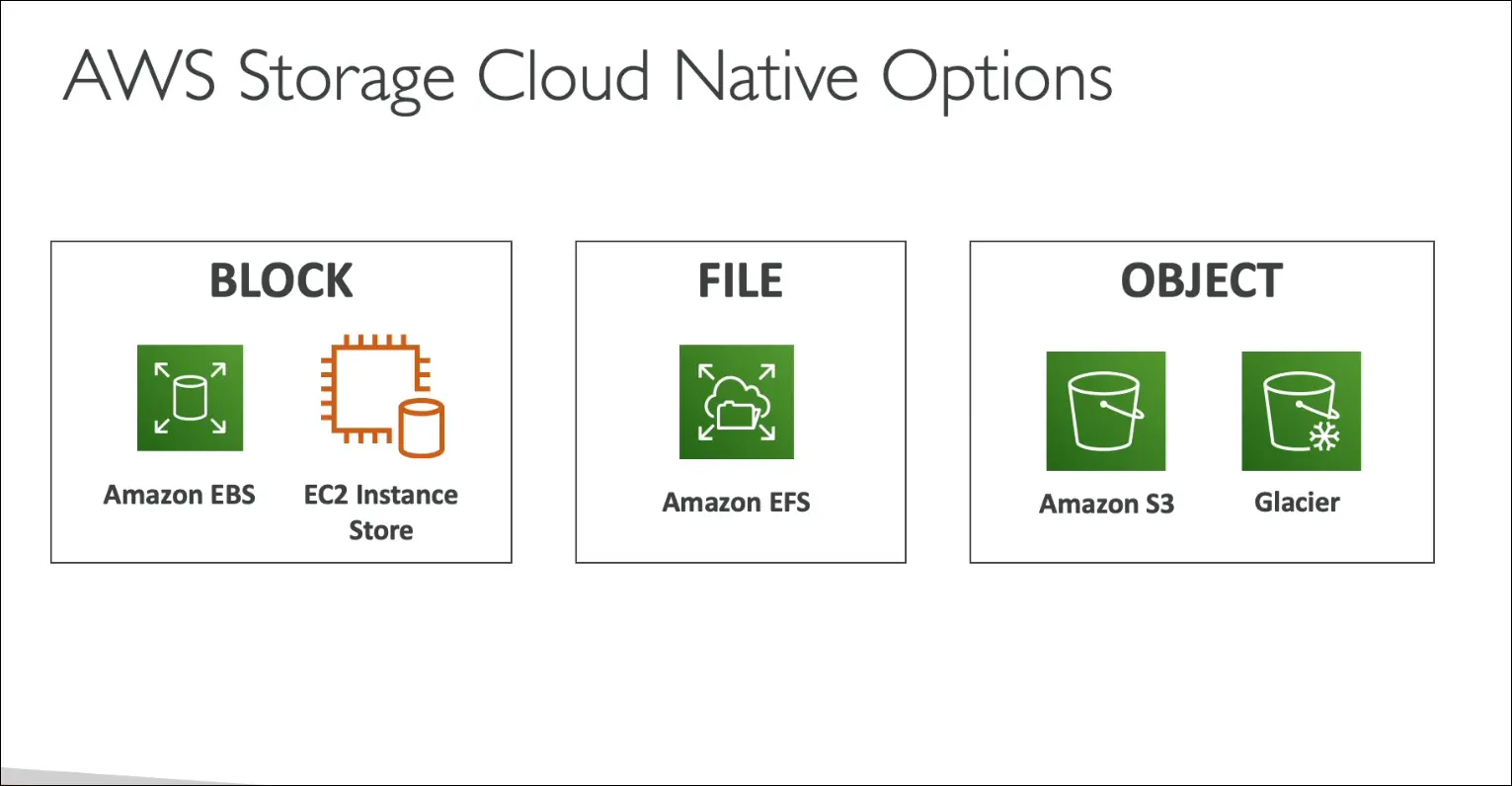
Storage Gateway
- Problem: Amazon S3 is proprietary object storage, not directly accessible like NFS (EFS) or block storage (EBS).
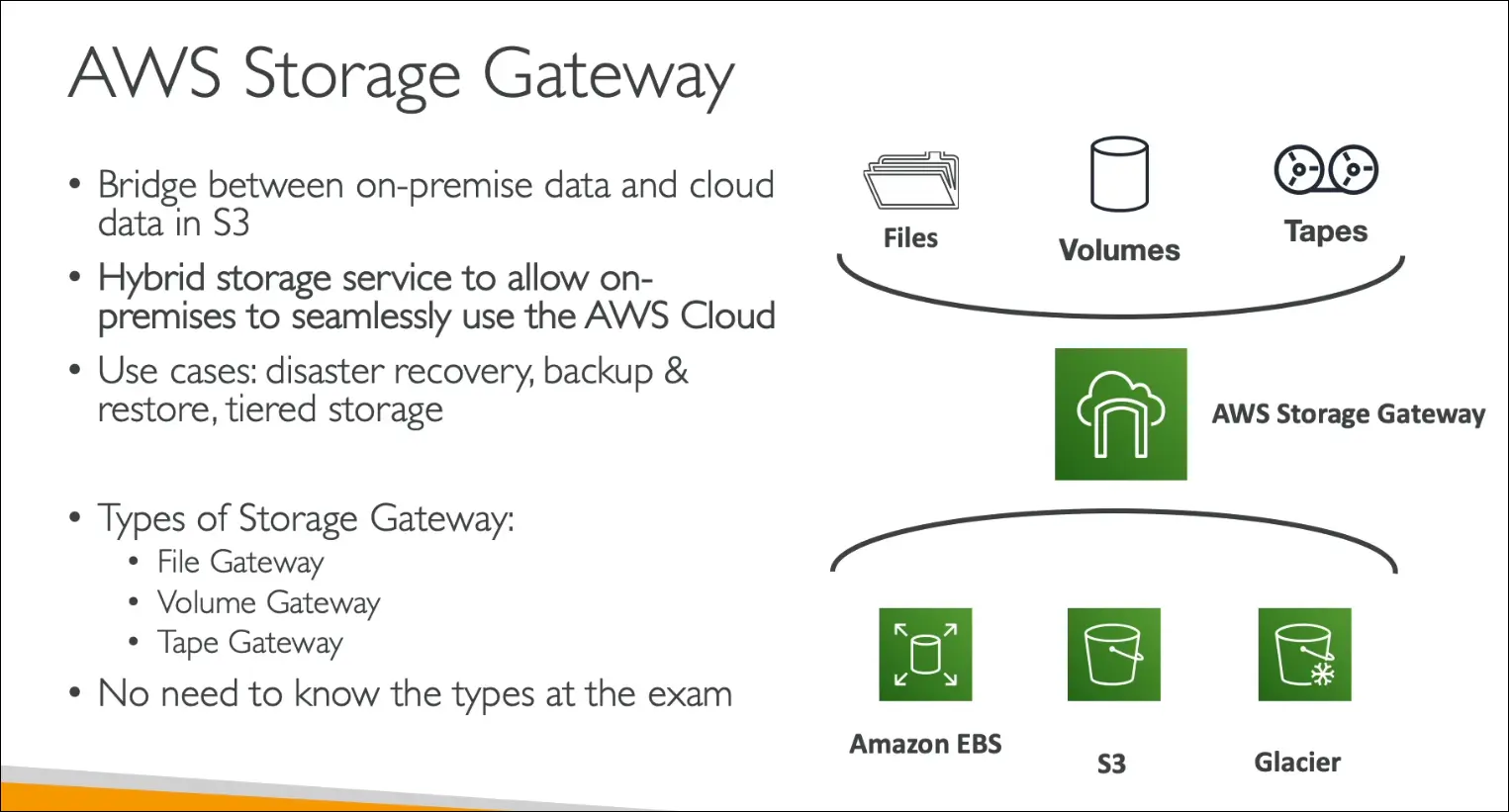
- Solution: Use AWS Storage Gateway to connect on-premises storage with AWS cloud.
Use cases:
- Disaster recovery.
- Backup and restore.
- Tiered storage (frequently accessed data on-premises, archive in AWS).
Types of Storage Gateway
- File Gateway → Files stored in Amazon S3.
- Volume Gateway → Block storage backed by Amazon EBS & S3.
- Tape Gateway → Virtual tape library backed by Amazon S3 & Glacier.
Key Points for AWS CCP Exam
- Storage Gateway bridges on-premises storage with AWS cloud storage.
- Under the hood, it uses EBS, S3, and Glacier.
- You only need high-level understanding for the Cloud Practitioner exam (details are for Solutions Architect Associate).
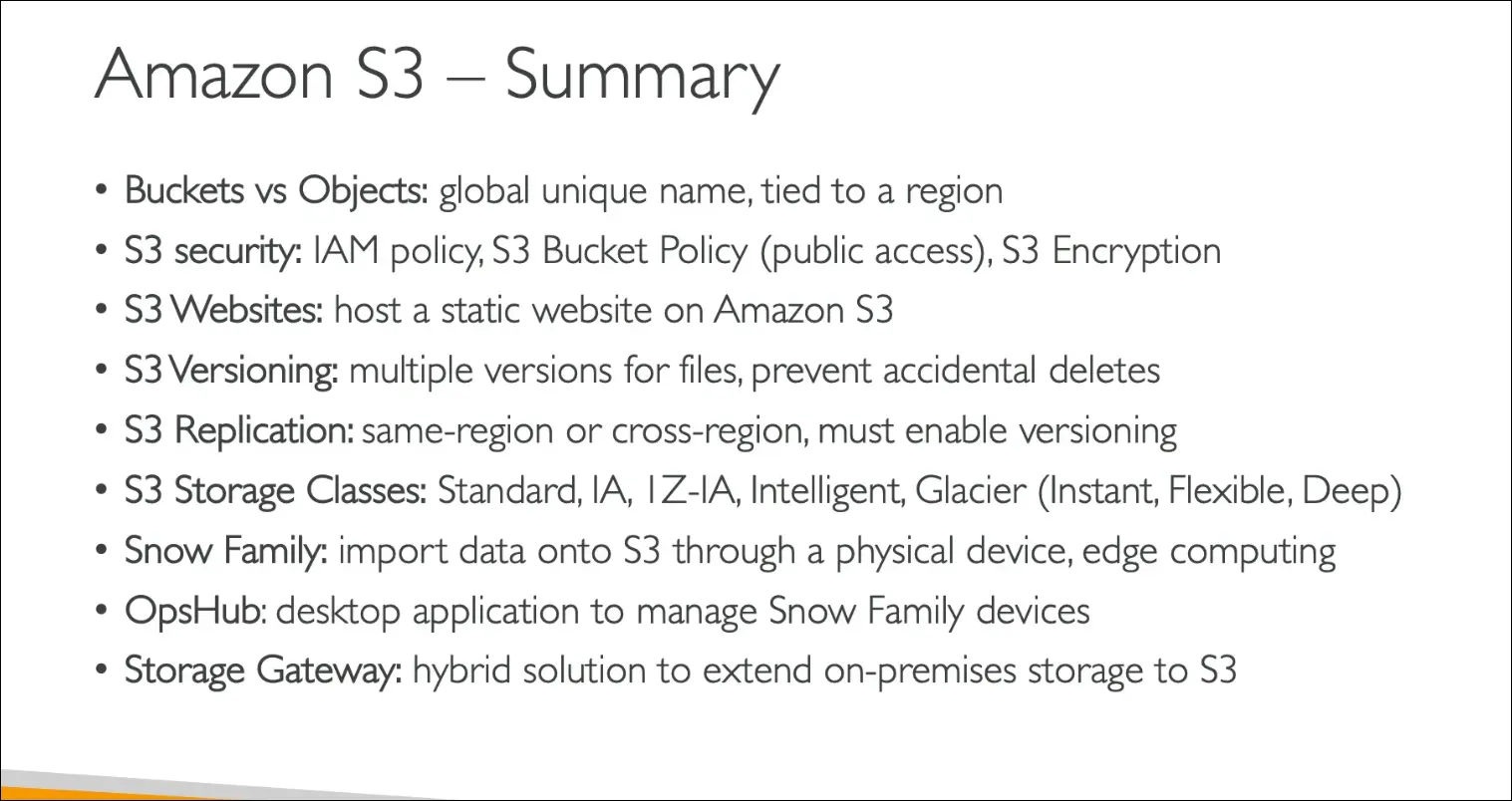
Amazon S3 - Summary