Amazon EC2
- EC2 = Elastic Compute Cloud
- AWS Infrastructure as a Service (IaaS) offering
- Lets you rent virtual servers (instances) on-demand
EC2 Components
- Instances → Virtual machines (VMs)
- EBS Volumes → Virtual drives for storage
- Elastic Load Balancer (ELB) → Distributes traffic across instances
- Auto Scaling Group (ASG) → Scales instances automatically
Instance Configuration Options
- OS Choices: Linux (most popular), Windows, MacOS
- Compute: Number of vCPUs (cores)
- Memory (RAM): Customizable
- Storage:
- EBS/EFS (network-attached)
- Instance Store (hardware-attached)
- Networking:
- Network card speed
- Public IP options
- Security Groups: Firewall rules for instance
- Bootstrap (User Data): Script executed at first launch
- Installs software, updates, downloads files, etc.
- Runs as root (sudo rights)
Instance Types Examples
| Instance | vCPU | Mem (GiB) | Storage | Network Performance | EBS Bandwidth (Mbps) |
|---|---|---|---|---|---|
| t2.micro | 1 | 1 | EBS-Only | Low to Moderate | - |
| t2.xlarge | 4 | 16 | EBS-Only | Moderate | 4,750 |
| c5d.4xlarge | 16 | 32 | 1 x 400 NVMe SSD | Up to 10 Gbps | 4,750 |
| r5.16xlarge | 64 | 512 | EBS Only | 20 Gbps | 13,600 |
| m5.8xlarge | 32 | 128 | EBS Only | 10 Gbps | 6,800 |
Free Tier
- t2.micro: Up to 750 hours per month free (~1 instance running continuously for a month)
EC2 Instance Types
- Different workloads need different optimizations: compute, memory, storage, or networking.
- AWS provides several categories of instances to match use cases.
Detail of Each Instance ->: https://instances.vantage.sh Each Category Details ->: https://aws.amazon.com/ec2/instance-types
Naming Convention
Example: m5.2xlarge
- M = Instance class (General Purpose)
- 5 = Generation (newer number = newer hardware, better performance)
- 2xlarge = Size within the class
- Scales up: small → large → xlarge → 2xlarge → 4xlarge → …
- Larger size = more vCPU, memory, and network performance.
Major EC2 Instance Categories
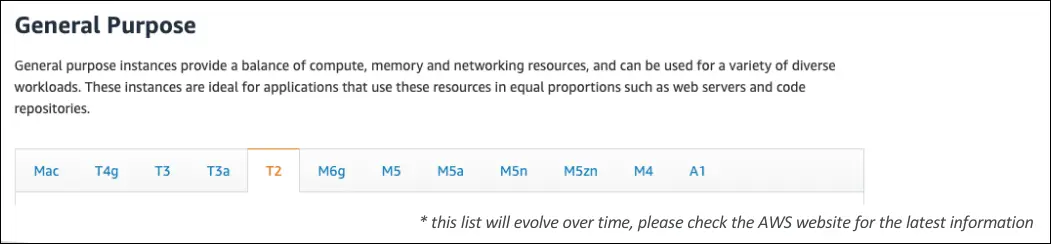
General Purpose
- Balanced between compute, memory, and networking.
- Use cases: Web servers, code repositories, small/medium databases.
- Examples: T2/T3 (burstable), M5/M6.
- Exam Tip: Free tier uses t2.micro (1 vCPU, 1 GB RAM, 750 hrs/month).
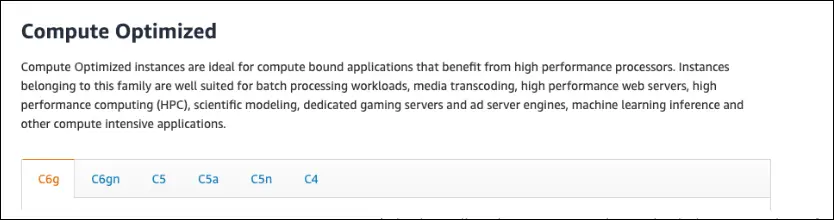
Compute Optimized
- Optimized for high-performance CPU needs.
- Use cases:
- Batch processing
- Media transcoding
- High-performance web servers
- High Performance Computing (HPC)
- Machine learning (CPU-based)
- Gaming servers
- Examples: C5, C6 (C = Compute).
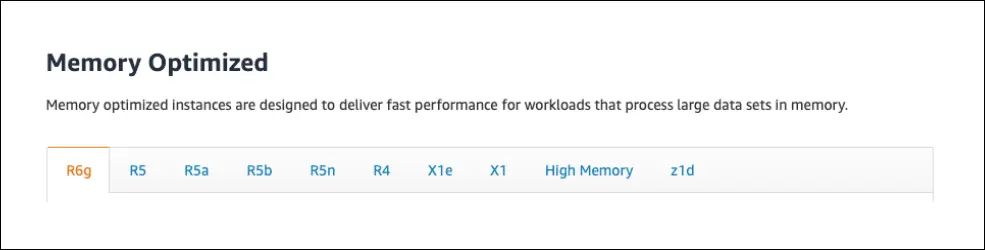
Memory Optimized
- Optimized for large datasets processed in-memory (RAM).
- Use cases:
- Relational & NoSQL databases
- In-memory databases (Redis, Memcached)
- Caching layers (ElastiCache)
- Business intelligence (BI), data analytics
- Real-time big data processing
- Examples:
- R series (RAM-focused)
- X1 (extra high memory)
- Z1 (specialized)
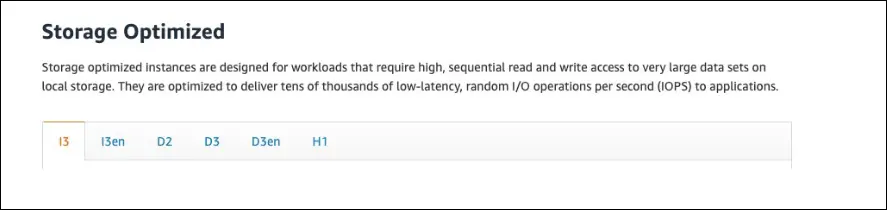
Storage Optimized
- Optimized for workloads requiring high, sequential read/write on local storage.
- Use cases:
- High-frequency OLTP systems
- Relational & NoSQL DBs
- Caches for in-memory DBs
- Data warehousing apps
- Distributed file systems (e.g., Hadoop)
- Search engines
- Examples: I3, H1, D2.
Graphics Optimized
- Designed for graphics-intensive workloads.
- Use specialized NVIDIA GPUs for rendering, streaming, and visualization.
- Focus is on graphics acceleration, not deep learning (that’s P family).
Common Instances
G3 / G4ad / G4dn / G5
- Equipped with NVIDIA GPUs
- Provide high-quality remote visualization
Use Cases
- Video rendering & transcoding
- 3D visualization (architecture, engineering, design)
- Game streaming (cloud gaming services)
- Virtual desktops (VDI, e.g. AWS WorkSpaces)
- Augmented Reality (AR) / Virtual Reality (VR) applications
Exam Tip
- G = Graphics
- Don’t confuse with:
- P family (GPU for Machine Learning / Compute)
- F family (FPGA programmable hardware)
AWS Security Groups (SGs)
- Security Groups = Virtual firewalls for EC2 instances.
- Control inbound (into instance) and outbound (from instance) traffic.
- They are stateful and only contain allow rules (no explicit deny).
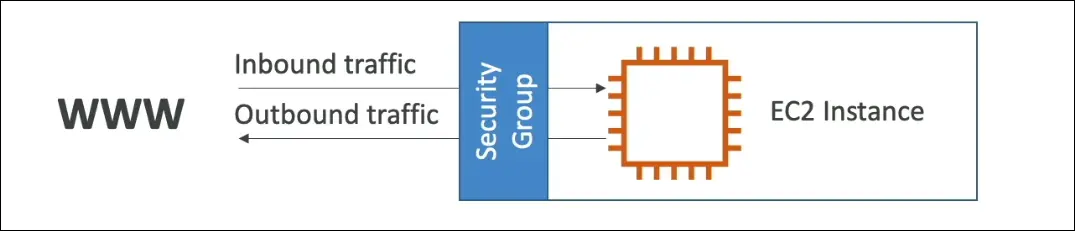
Rules
- Rules can reference:
- IP addresses (IPv4, IPv6).
- Other Security Groups (important for load balancers and multi-tier setups).
- Rules define: Type (service), Protocol (TCP/UDP/ICMP), Port range, Source/Destination.
0.0.0.0/0= all IPv4 addresses,::/0= all IPv6 addresses.

Default Behavior
- Inbound: All traffic blocked by default.
- Outbound: All traffic allowed by default.
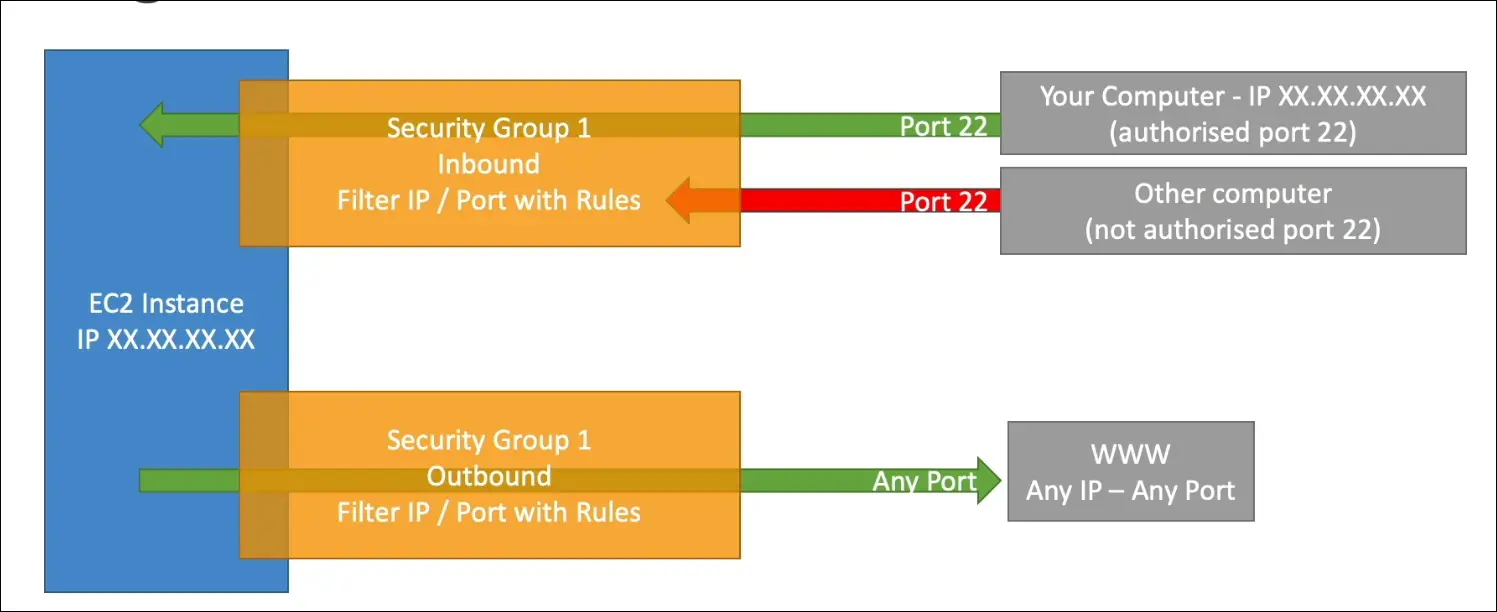
Key Characteristics
- Can be attached to multiple instances.
- An instance can have multiple security groups.
- Scoped to a Region + VPC (must recreate in another Region/VPC).
- Operate outside the EC2 instance (traffic blocked before reaching the OS).
- Timeout = Security Group is blocking traffic.
- Connection Refused = SG allowed traffic, but the app on the instance is not running/accepting connections.
Advanced Feature
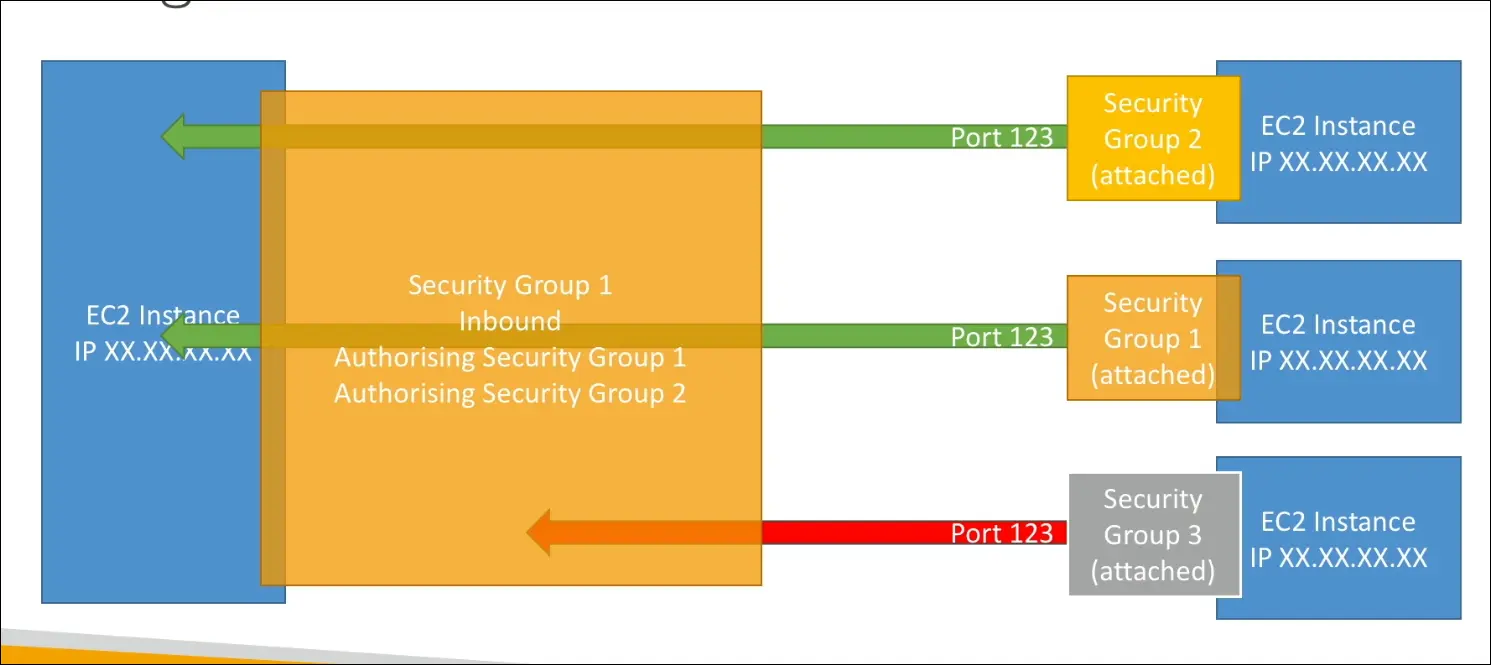
Security Group Referencing:
- SGs can authorize other SGs.
- Example: Web SG allows inbound only from Load Balancer SG.
- Avoids managing dynamic IPs, simplifies multi-instance communication.
Important Ports to Memorize (for Exam)
- 22 → SSH (Linux login)
- 21 → FTP (File transfer)
- 22 → SFTP (Secure FTP using SSH)
- 80 → HTTP (Unsecured websites)
- 443 → HTTPS (Secured websites, standard today)
- 3389 → RDP (Windows login)
SSH into EC2 (Linux/Mac)
- Secure Shell, used to control remote servers via terminal.
- Connects to EC2 instance over port 22.
Pre-requisites:
- EC2 instance running (Amazon Linux 2).
- Security Group allows port 22 (SSH) from
0.0.0.0/0. .pemkey pair file downloaded (rename to remove spaces).
Steps:
- Place
.pemfile in a safe folder (e.g.,aws-course). - Get Public IPv4 of your EC2 instance.
- Open terminal in the same directory as
.pem.
SSH Command:
| |
Common usernames based on AMI:
- Amazon Linux →
ec2-user - Ubuntu →
ubuntu - RHEL →
ec2-user - CentOS →
centos - Debian →
adminordebian
Common Issues:
- Too many authentication failures → You didn’t specify key with
-i. - Unprotected private key file → Fix with:
| |
Verify Connection:
- Prompt changes to
ec2-user@<IP>. - Run:
| |
Exit SSH: Type exit or press Ctrl+D.
Here are concise notes for that lecture:
EC2 Instance Connect (Alternative to SSH)
1. What It Is
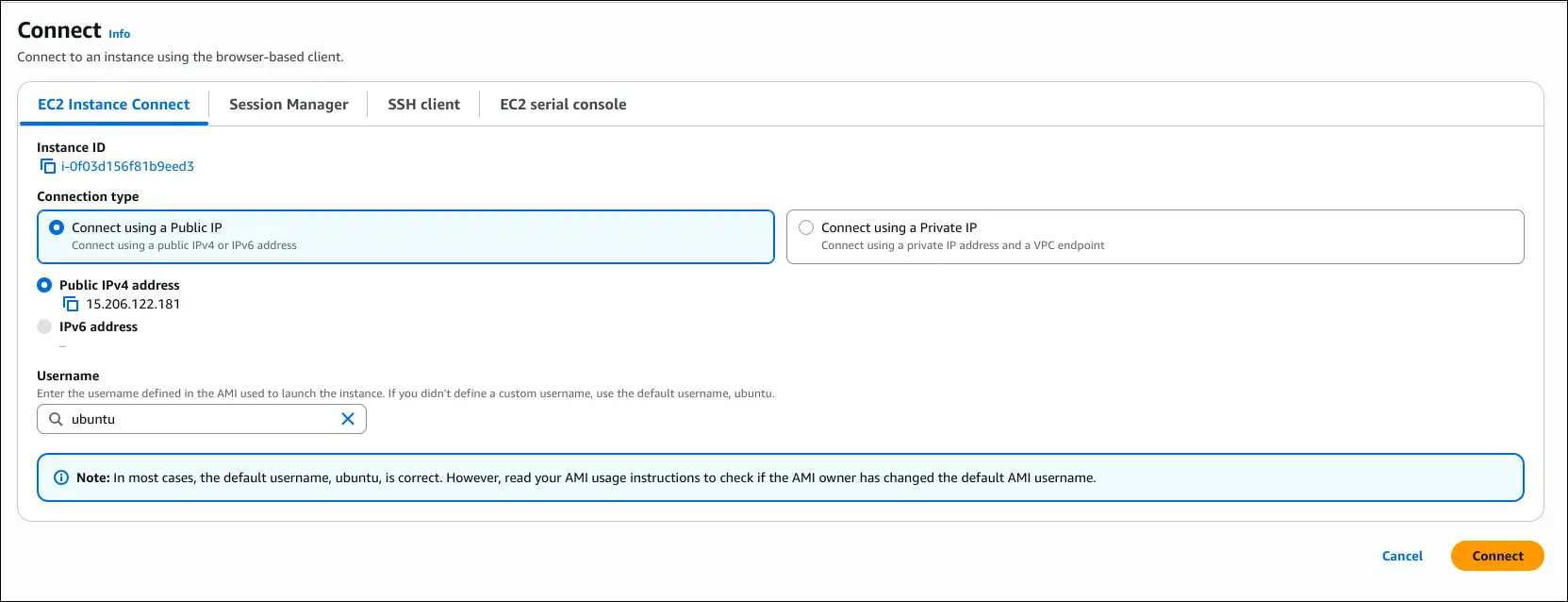
- A browser-based SSH session into your EC2 instance.
- No need to install SSH client or manage
.pemkeys. - AWS automatically uploads a temporary SSH key.
How to Use
- Go to EC2 Console → Instances → Select Instance → Connect.
- Choose EC2 Instance Connect.
- Default username = ec2-user (for Amazon Linux 2).
- Click Connect → browser terminal opens.
Benefits
- No SSH key management required.
- Works directly in the browser.
- Quick way to access EC2 for testing or troubleshooting.
Behind the Scenes
- Still relies on SSH over port 22.
- Security Group must allow Inbound SSH (port 22).
- May require both IPv4 (0.0.0.0/0) and IPv6 (::/0) rules.
Common Issues
- EC2 Instance Connect fails → check that port 22 is open.
- If using IPv6, ensure you also allow IPv6 SSH in Security Group.
Exam Tip
- EC2 Instance Connect = easy SSH alternative.
- Still requires port 22 open in SG.
Quick Command Check in Browser Session:
| |
IAM Roles for EC2 Instances
- Connection: Access your EC2 instance (via SSH or EC2 Instance Connect).
- AWS CLI: Amazon Linux AMI comes with AWS CLI pre-installed.
- Bad Practice:
- Never run
aws configureand enter Access Key + Secret Key inside an EC2 instance. - Credentials can be stolen if others access the instance.
- Never run
- Correct Approach: Use IAM Roles.
- Create an IAM Role with required policy (e.g.,
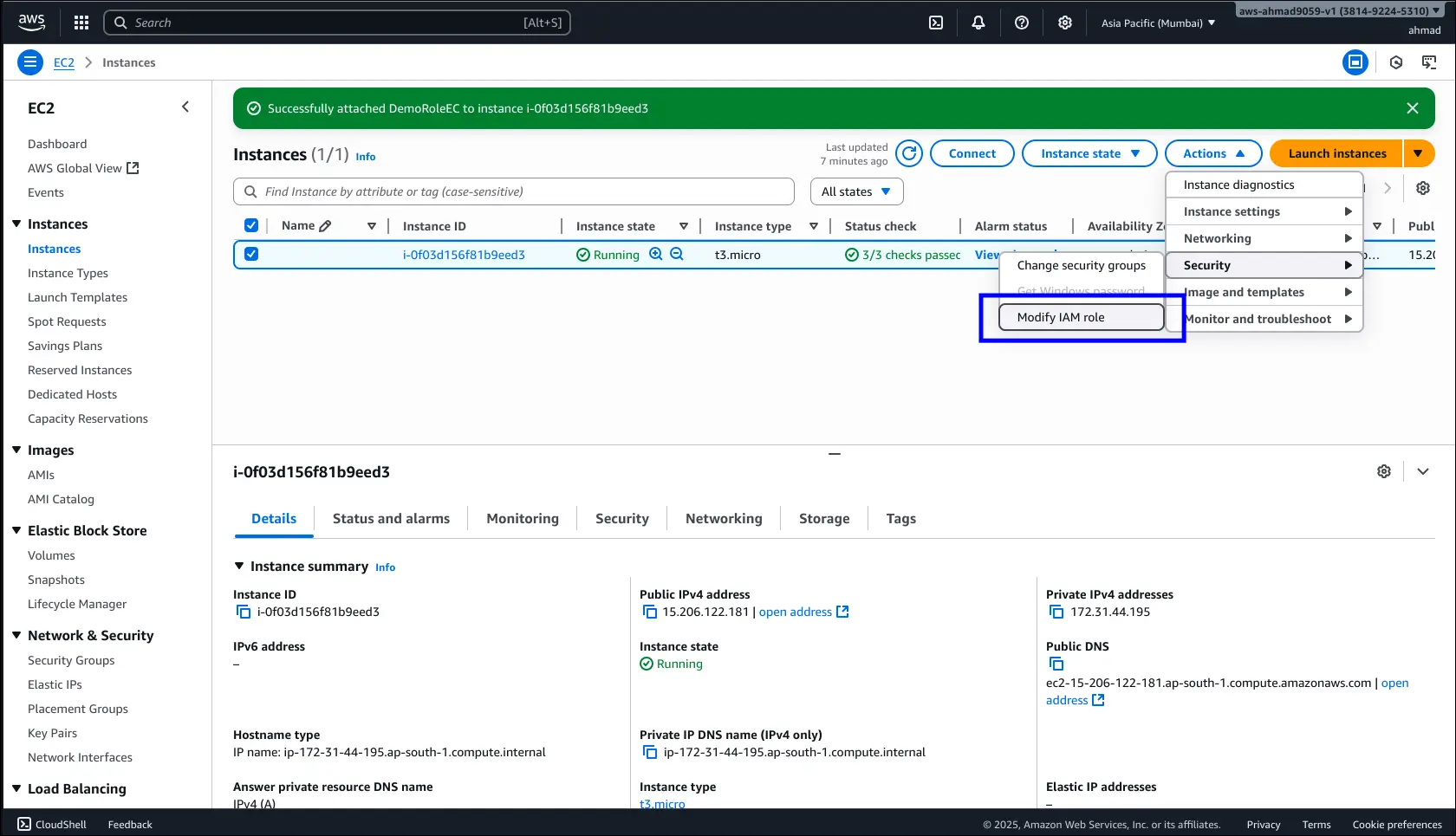
IAMReadOnlyAccess). - Attach the role to your EC2 instance (Actions → Security → Modify IAM Role).
- The instance automatically gets temporary credentials via the metadata service.
- Create an IAM Role with required policy (e.g.,
Demo Flow
- Run
aws iam list-usersbefore attaching role → Fails (no credentials). - Attach IAM Role to instance.
- Detach policy from the role → Access denied.
- Re-attach policy → Works after propagation delay.
Key Point
- Always use IAM Roles to give EC2 instances permissions.
- Never hardcode or manually configure credentials on the instance.
EC2 Purchasing Options
On-Demand
- Pay per second (Linux/Windows) after 1st minute, per hour for others.
- No upfront payment, no long-term commitment.
- Highest cost.
- Best for: short-term, unpredictable workloads.
Reserved Instances (RIs)
- Commit for 1 or 3 years.
- Up to 72% discount vs on-demand.
- Specify: instance type, region, tenancy, OS.
- Payment: all upfront, partial, or none (all upfront = max discount).
- Scope: Regional or AZ-specific (reserve capacity).
- Best for: steady-state workloads (databases).
- Convertible RIs: flexibility to change type/family/OS/scope/tenancy, lower discount (up to 66%).
- Can be bought/sold on RI Marketplace.
Savings Plans
- Commit to spending ($/hr) for 1 or 3 years.
- Up to 70% discount.
- More flexible than RIs:
- Switch between OS, tenancy, and instance size in same family/region.
- Usage beyond plan = on-demand pricing.
Spot Instances
- Up to 90% discount.
- AWS can reclaim instances anytime if spot price > your bid.
- Best for: fault-tolerant, flexible workloads (batch jobs, analytics, image processing, distributed systems).
- Not for: critical jobs, databases.
Dedicated Hosts
- Book an entire physical server.
- Use case: compliance needs, bring-your-own-license (per-socket/core/VM).
- Pricing: on-demand (per second) or reserved (1 or 3 years).
- Most expensive option.
- Gives hardware-level visibility.
Dedicated Instances
- Run on hardware dedicated to you.
- No control over placement.
- May share hardware with other instances in same account.
- Difference from dedicated hosts:
- Instances = dedicated compute, no hardware visibility.
- Hosts = full physical server, compliance/license control.
Capacity Reservations
- Reserve on-demand instances in a specific AZ.
- Duration: any, cancel anytime.
- No time commitment, no billing discount.
- Guarantees capacity when needed.
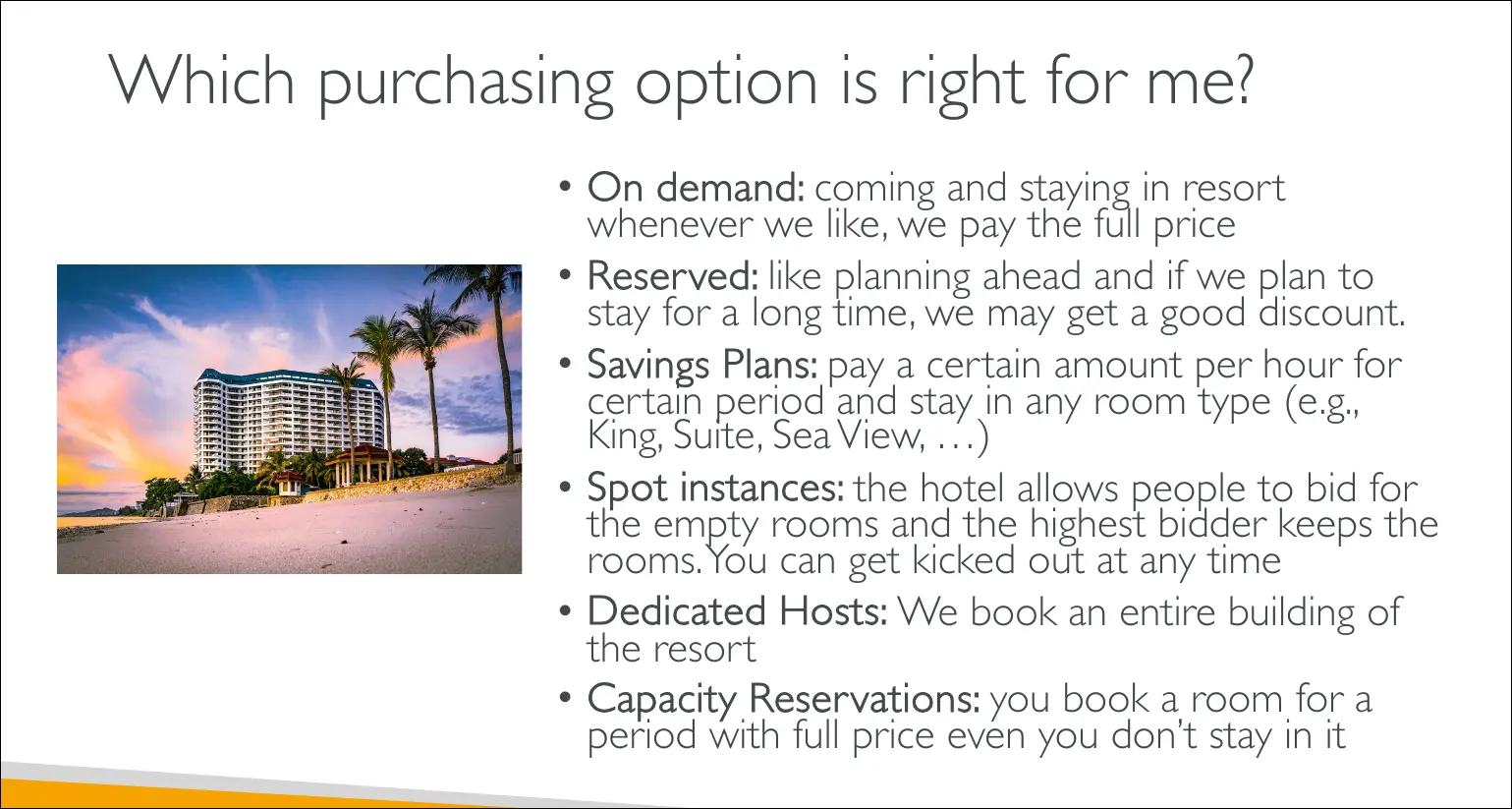
Which Purchasing Option is Right For Me?
AWS IPv4 Charges
- Charge: $0.005/hour per Public IPv4 (~$3.60/month).
- Applies whether used or unused.
EC2 Free Tier
- 12 months after account creation.
- 750 hours/month of Public IPv4 (≈ 1 IPv4 for a full month).
- Shared across all EC2 instances in account.
- Additional IPs or exceeding 750 hrs → charged at $0.005/hr.
Other Services
- No free tier (always charged):
- Elastic Load Balancers (1 IPv4 per AZ).
- Amazon RDS (when public access enabled).
- Any other service with public IPv4.
IPv6
- No charge.
- AWS encourages migration to IPv6.
- Limitation: many ISPs worldwide still lack IPv6 support.
- Optional in course: advanced users may configure IPv6 manually.
Cost Management
- Check charges:
- Billing & Cost Management → Bills → Drill down by service.
- IPv4 charges appear here.
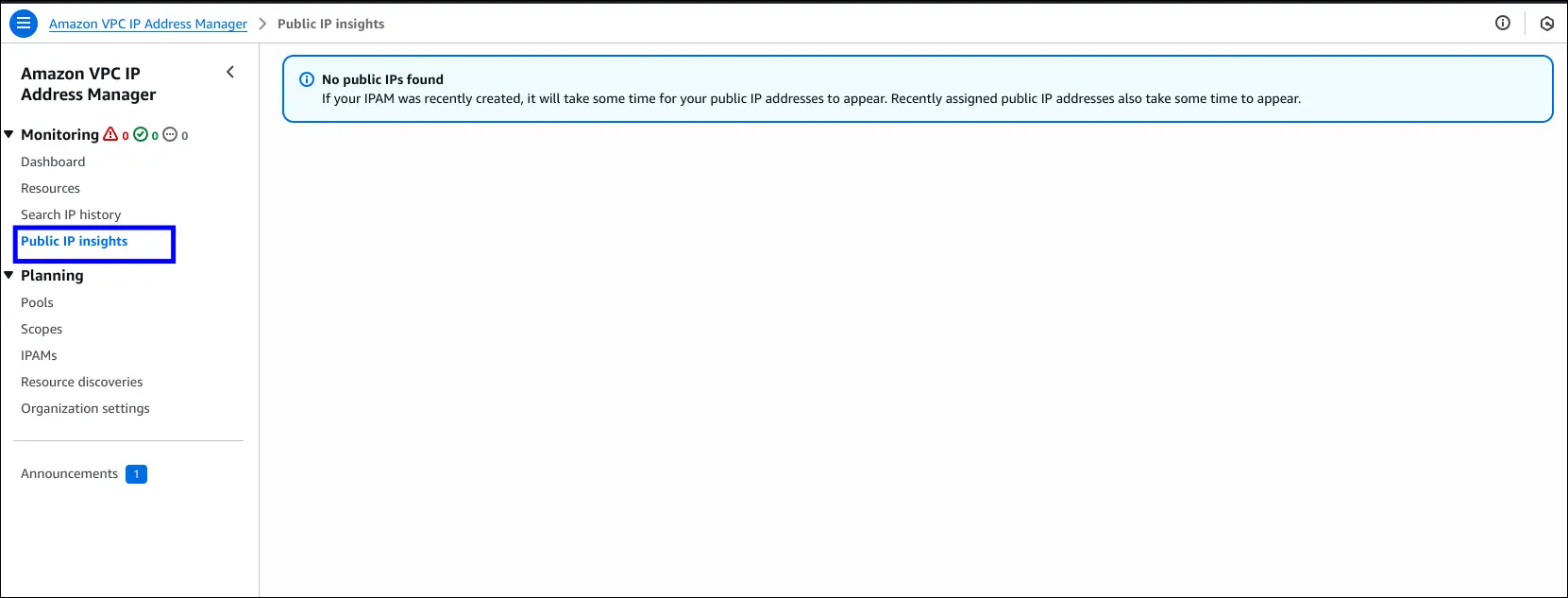
- Public IP Insights (via Amazon VPC IPAM):
- Free tier feature.
- Lets you monitor IPv4 usage across regions/accounts.
Best Practices
- Avoid leaving resources running unnecessarily.
- Prefer IPv6 where possible.
- Use IPAM to track allocations.
Shared Responsibility Model – EC2
AWS Responsibilities (Security of the cloud)
- Physical infrastructure: data centers, networking, hardware.
- Isolation of physical hosts (for dedicated hosts).
- Faulty hardware replacement.
- Compliance with global regulations.
User Responsibilities (Security in the cloud)
- Network security: configure Security Groups and access rules.
- Operating System: patching, updates, maintenance (Windows/Linux).
- Software & utilities: install, configure, and secure.
- IAM roles & permissions: assign correctly for least-privilege access.
- Data security: ensure encryption and safe handling of data on EC2.
✅ AWS secures the infrastructure,
✅ You secure everything inside your instance.