EC2 Storage – EBS Volumes
- EBS = Elastic Block Store
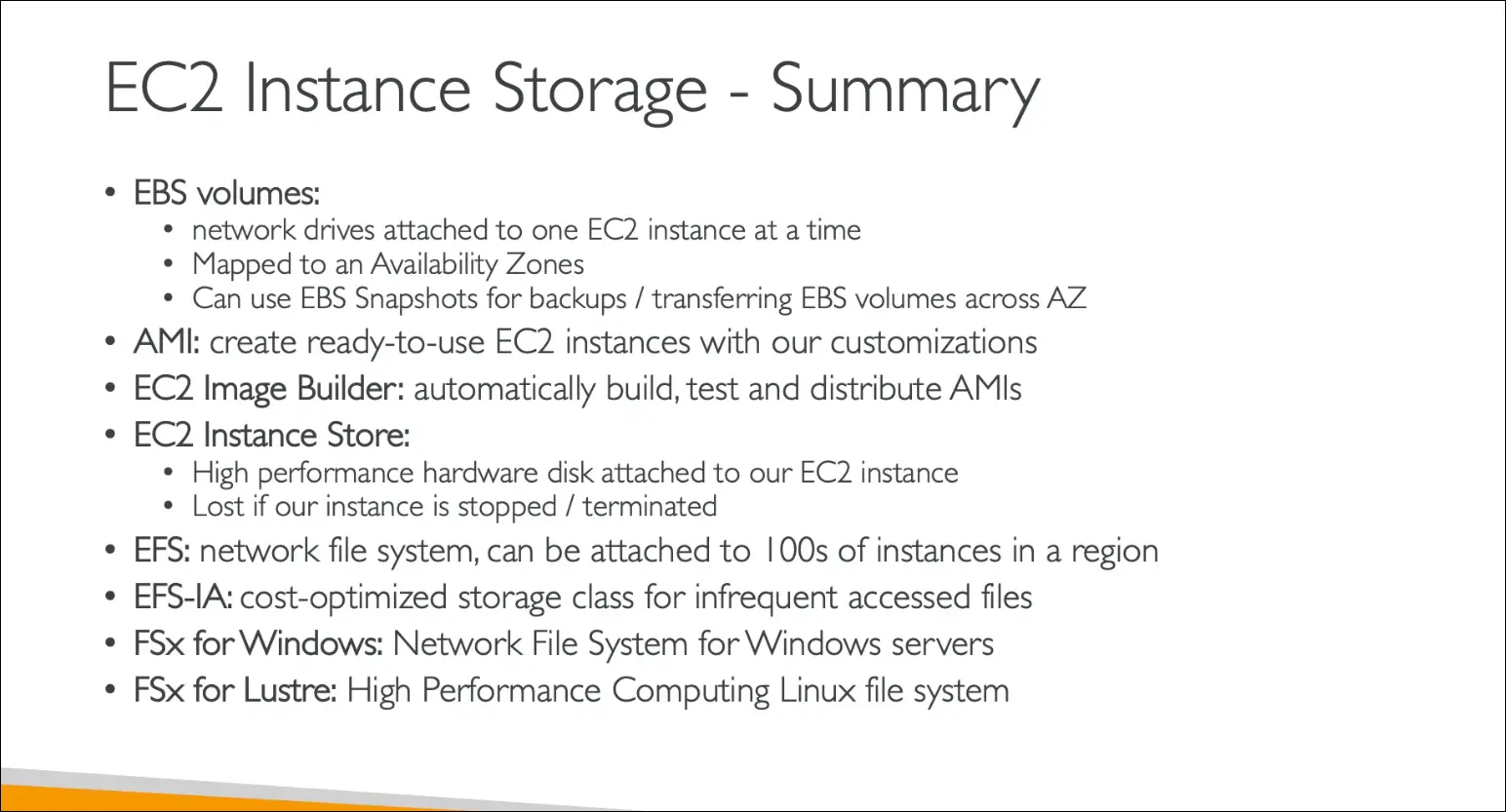
- A network drive you can attach to EC2 instances.
- Persists data even after the instance is terminated (unlike instance store).
- Think of it like a network USB stick.
Key Properties
- AZ-bound: An EBS volume is created in a specific Availability Zone (e.g.,
us-east-1a) and can only be attached to EC2 instances in the same AZ. - One instance at a time (at CCP level): A single EBS volume cannot be attached to multiple EC2s simultaneously.
- Attach/detach flexibility: Can detach from one EC2 and attach to another in the same AZ.
- Capacity must be provisioned in advance: Specify storage size (GB) and IOPS (I/O operations per second). You pay for provisioned capacity.
- Performance can be increased later by resizing or changing volume type.
Free Tier
- 30 GB of free EBS storage per month (General Purpose SSD or Magnetic).
Network Latency
- Since EBS communicates over the network, expect slight latency compared to local storage.
Snapshots
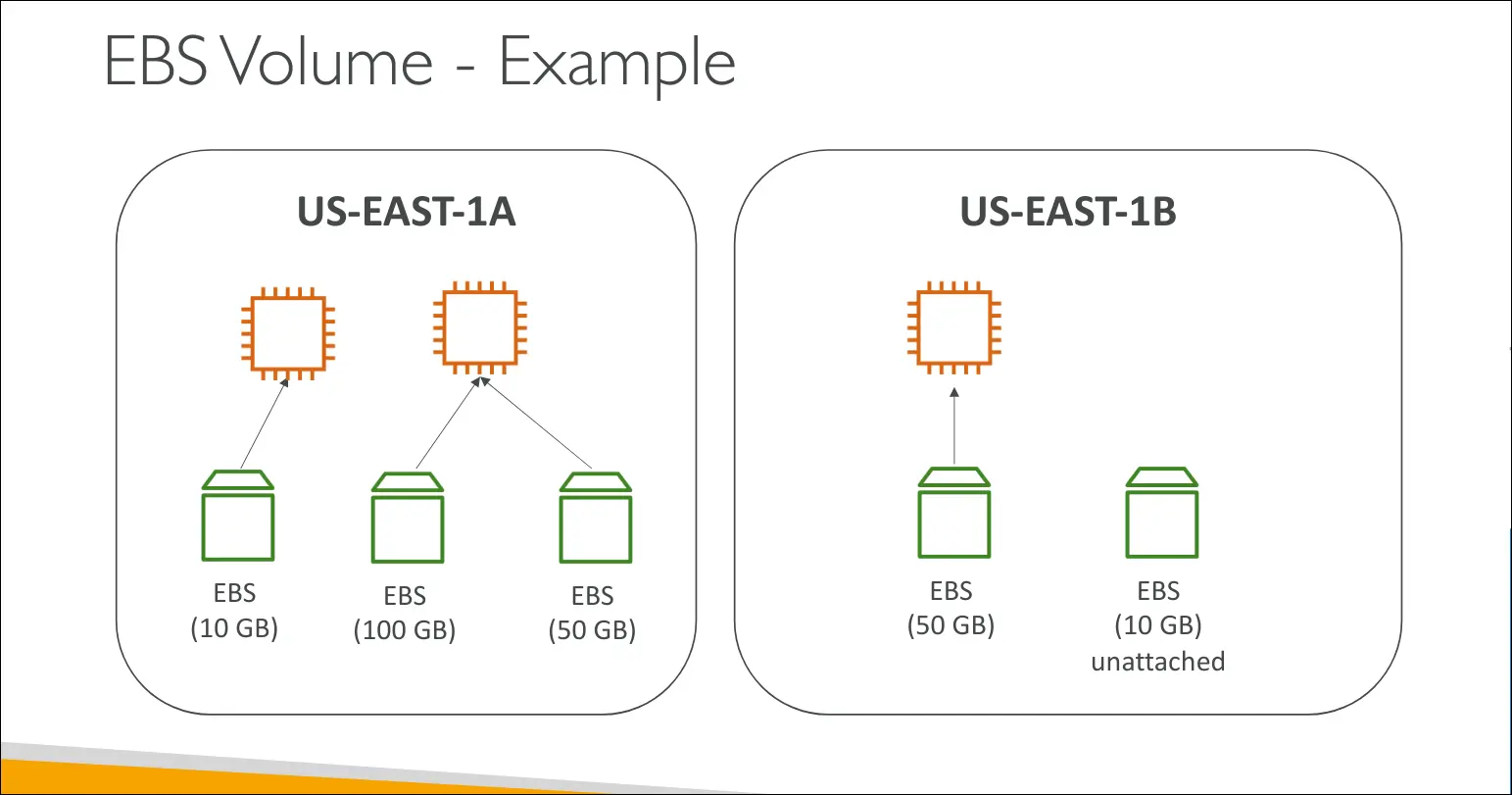
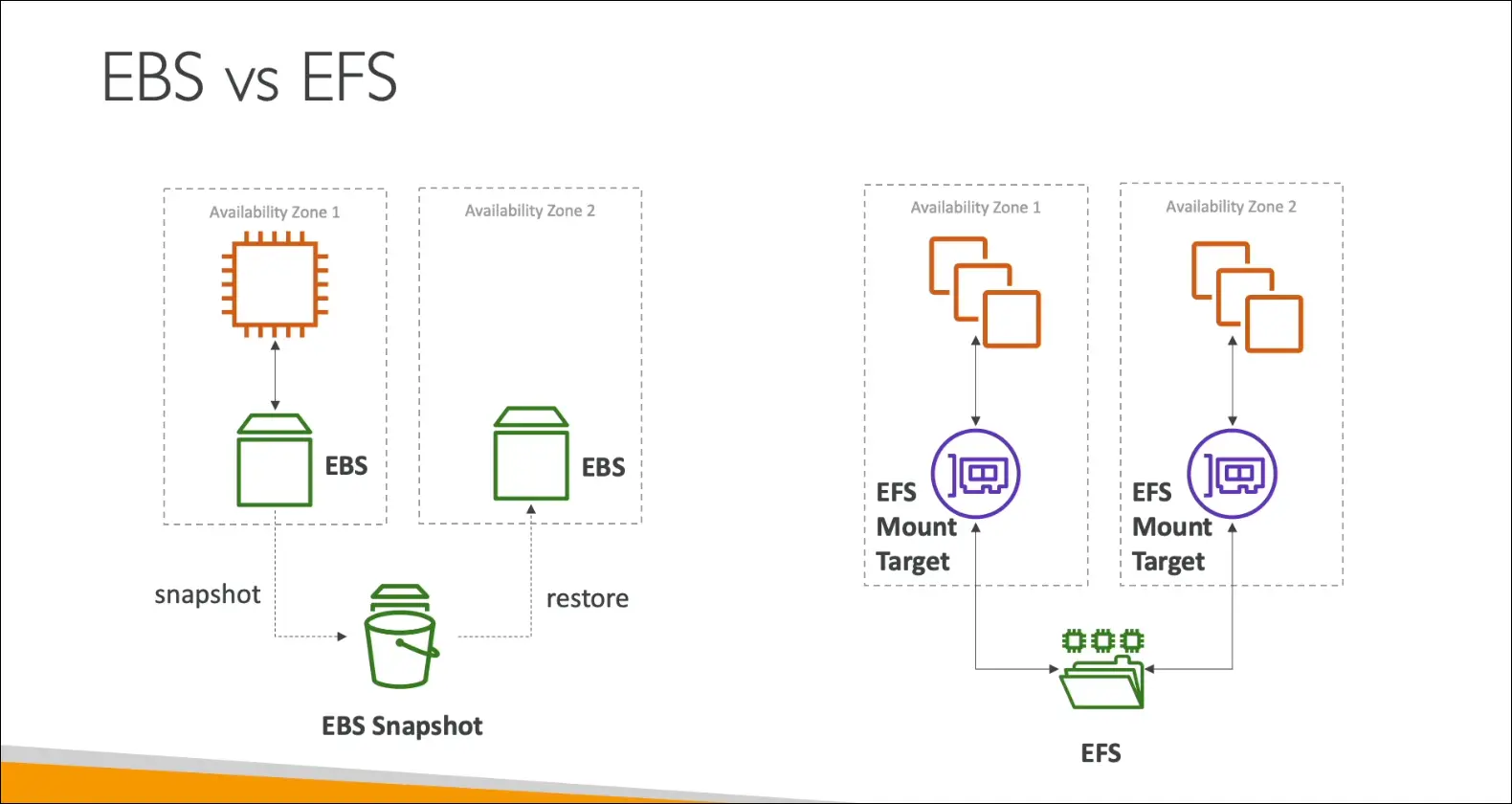
- EBS Snapshots allow moving volumes across AZs (and even regions).
Multiple Volumes
- An EC2 instance can have multiple EBS volumes attached (like multiple USB sticks).
- Each EC2 instance usually has its own root volume, but you can add more.
Unattached Volumes
- EBS volumes can exist unattached (not linked to any EC2) until needed.
Delete on Termination
- Attribute controlling EBS lifecycle when instance is terminated:
- Root volume: By default, deleted when EC2 instance terminates.
- Additional volumes: By default, not deleted.
- Can manually enable/disable this behavior.
- Use case: Keep root volume to preserve logs/data after instance termination.
EBS Volumes (Hands-on Demo)
Viewing EBS Volumes
- Each EC2 instance has a root device (block device, usually 8 GB by default).
- Can view attached volumes under EC2 → Storage tab.
- Clicking the volume opens the EBS Volumes console.
Creating Additional Volumes
- Can create new EBS volumes in the Volumes section.
- Must specify:
- Volume type (GP2, GP3, etc.).
- Size (e.g., 2 GB).
- Availability Zone (AZ) – must match the instance’s AZ to attach.
Attaching Volumes
- After creation, new volumes are in Available state.
- Must be attached manually to an EC2 instance.
- Once attached, the EC2 instance will show multiple block devices.
- To use the new volume: requires formatting & mounting (out of scope for CCP).
AZ Boundaries
- EBS volumes are AZ-specific.
- If volume is in different AZ, it cannot be attached to the instance.
- Example: Instance in
eu-west-1bcannot attach volume created ineu-west-1a.
Deleting Volumes
- Unattached volumes can be deleted instantly.
- Demonstrates cloud flexibility: create, attach, detach, delete quickly.
Delete on Termination Attribute
- Root volume:
- By default, Delete on Termination = Yes.
- This means when the instance is terminated, the root volume is deleted.
- Additional volumes:
- By default, Delete on Termination = No.
- These persist after instance termination unless manually deleted.
- Behavior can be changed during instance launch (Advanced storage settings) or later.
Demo Recap
- Instance terminated → root volume deleted.
- Additional volume remained intact.
- Confirms lifecycle behavior of Delete on Termination.
EBS Snapshots
- Snapshot = backup of an EBS volume at a point in time.
- Can restore a new volume from snapshot even if original volume is deleted.
- Recommended (not required) to detach/stop instance before snapshot for data consistency.
Why Snapshots?
- Restore EBS volume to previous state.
- Copy across Availability Zones (AZs) or Regions.
- Enables data transfer using AWS global infrastructure.
How It Works
- Take snapshot of EBS volume (optional: stop EC2 first).
- Snapshot stored in Region.
- Use snapshot to create a new EBS volume in same or another AZ.
- Attach new volume to EC2 instance.
Features
- EBS Snapshot Archive
- Move snapshots to cheaper archive tier (75% cheaper).
- Restore time: 24–72 hours.
- Use case: long-term, low-priority backups.
- Recycle Bin for Snapshots
- Normally, deleted snapshots are gone permanently.
- With recycle bin: recoverable for 1 day to 1 year.
- Protects against accidental deletions.
Amazon Machine Image (AMI)
- AMI = Amazon Machine Image, powers EC2 instances.
- Represents a customized template of an EC2 instance.
- Contains:
- OS (Linux, Windows, etc.)
- Software packages / monitoring tools
- Custom configurations
Benefits
- Faster boot & configuration (software pre-installed).
- Reusable for launching multiple identical instances.
- Region-specific, but can be copied across regions.
Types of AMIs
- Public AMIs – provided by AWS (e.g., Amazon Linux 2).
- Custom AMIs – created and maintained by you.
- Marketplace AMIs – created by vendors, may be free or paid.
AMI Lifecycle / Process
- Launch & customize an EC2 instance.
- Stop instance (for data integrity).
- Create AMI (automatically creates EBS snapshots).
- Launch new instances from AMI in same or another AZ/Region.
Use Case Example
- Launch EC2 in us-east-1a, customize → create AMI → launch identical instance in us-east-1b.
EC2 Image Builder
- Service to automate creation, maintenance, validation, and testing of:
- EC2 AMIs (virtual machine images)
- Container images
- Removes manual effort in customizing and updating images.
How it Works
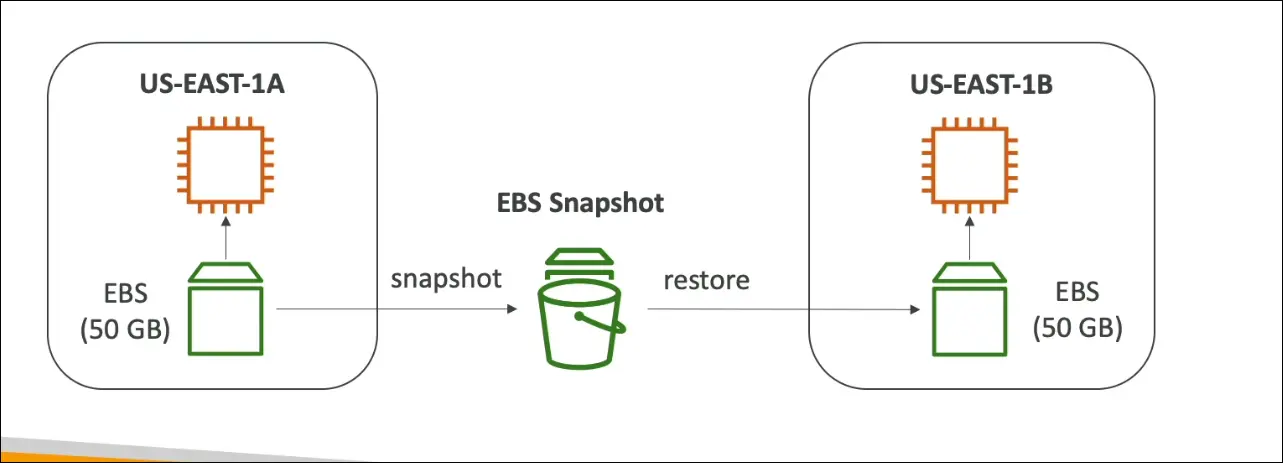
- Builder EC2 instance created automatically.
- Installs software (Java, CLI tools, firewalls, apps).
- Applies OS updates and configurations.
- AMI is built from the Builder instance.
- Test EC2 instance launched from AMI.
- Runs pre-defined tests (functionality, security, app health).
- Testing step is optional.
- AMI is distributed (multi-region support for global workloads).
Key Features
- Automation of build → test → distribute.
- Can run on schedule (weekly, on package updates, or manual).
- Free service – only pay for:
- EC2 instances used during build/test.
- AMI storage and replication across regions.
Exam Tips
- EC2 Image Builder = automated AMI lifecycle.
- Builder EC2 (creates AMI) vs Test EC2 (validates AMI).
- Supports global distribution of AMIs.
- Free service, but resources (EC2 + storage) are billed.
Here are concise AWS CCP notes from your EC2 Instance Store transcript:
EC2 Instance Store
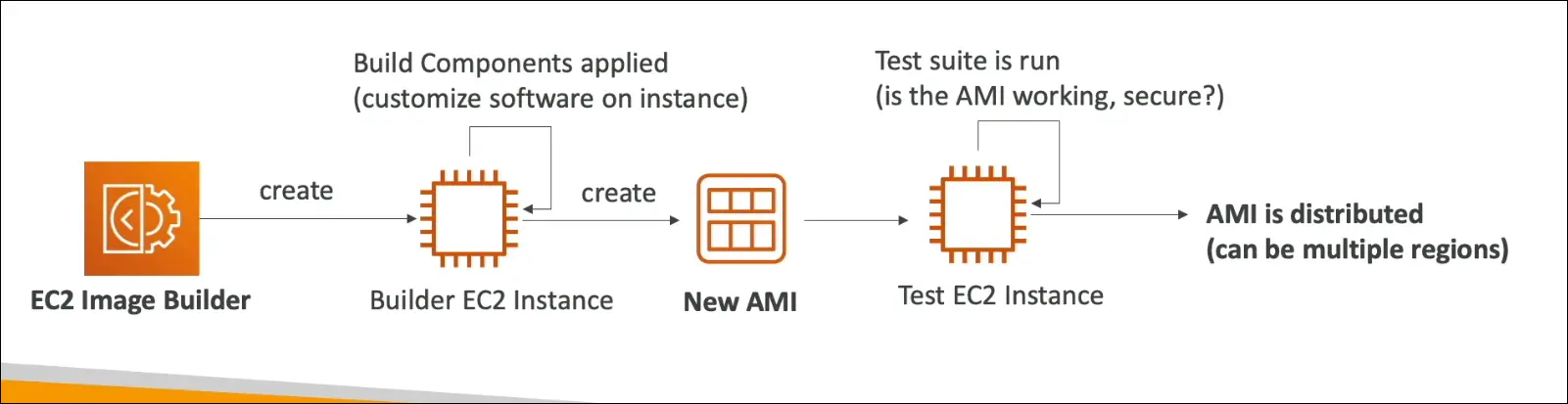
- Physical disk storage directly attached to the host server of the EC2 instance.
- Provides very high I/O performance compared to EBS.
- Also called ephemeral storage (data does not persist).
Key Characteristics
- Fastest storage option for EC2 (millions of IOPS possible).
- Data is lost when:
- Instance is stopped or terminated.
- Underlying host hardware fails.
- Not durable, not persistent.
Use Cases
- Temporary or transient data:
- Buffers, caches, scratch space.
- Data that can be recomputed or retrieved.
- Not suitable for long-term storage → use EBS instead.
Limitations & Risks
- Data loss on stop/terminate/failure.
- Responsibility for backups and replication is on you.
Example
- I3 instance family → comes with Instance Store volumes.
- Comparison:
- Instance Store → up to 3.3 million IOPS.
- gp2 EBS volume → up to 32,000 IOPS.
Exam Tip
- If question mentions “very high performance, non-persistent storage” → Answer: EC2 Instance Store.
- If question mentions “durable, long-term storage” → Answer: EBS.
Amazon Elastic File System (EFS)
- Managed NFS (Network File System) by AWS.
- Can be mounted to hundreds of Linux EC2 instances simultaneously.
- Works across multiple AZs in a region → highly available and scalable.
Characteristics
- Shared file system → all instances see the same files.
- Durable and highly available.
- Expensive (≈ 3x gp2 EBS cost).
- Pay-per-use → no capacity planning needed, pay only for data stored.
Comparison: EBS vs EFS
- EBS: one instance, one AZ, bound to AZ, snapshots for migration.
- EFS: many instances, multiple AZs, shared access, no snapshots needed.
Storage Classes
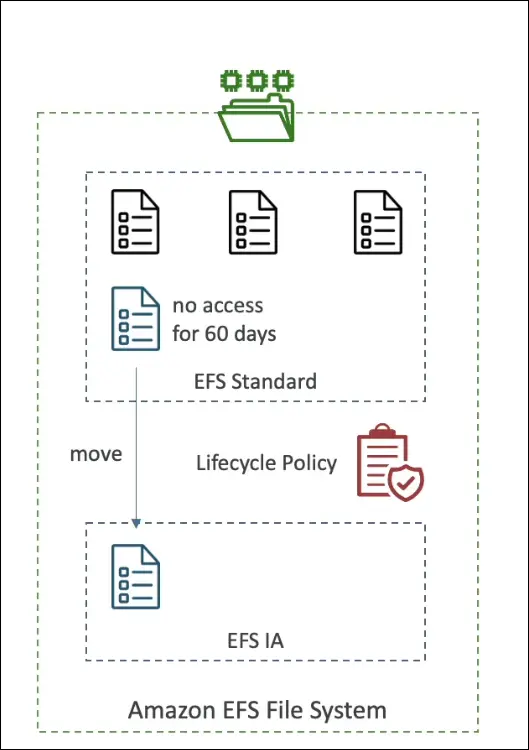
- EFS Standard – default, frequently accessed files.
- EFS Infrequent Access (EFS-IA) – up to 92% lower cost for less frequently used files.
- Uses lifecycle policies to move files automatically (e.g., after 60 days).
- Transparent to applications (apps access files the same way).
Exam Tips
- If question = shared, scalable storage across AZs → EFS.
- If question = Linux only shared file system → EFS.
- Remember EFS-IA lifecycle policy for cost optimization.
Key phrase to recall: EFS = managed, shared, scalable NFS for Linux EC2, cross-AZ, with Standard & Infrequent Access storage classes.
Here are concise AWS CCP notes from your EC2 storage shared responsibility model transcript:
EC2 Storage – Shared Responsibility
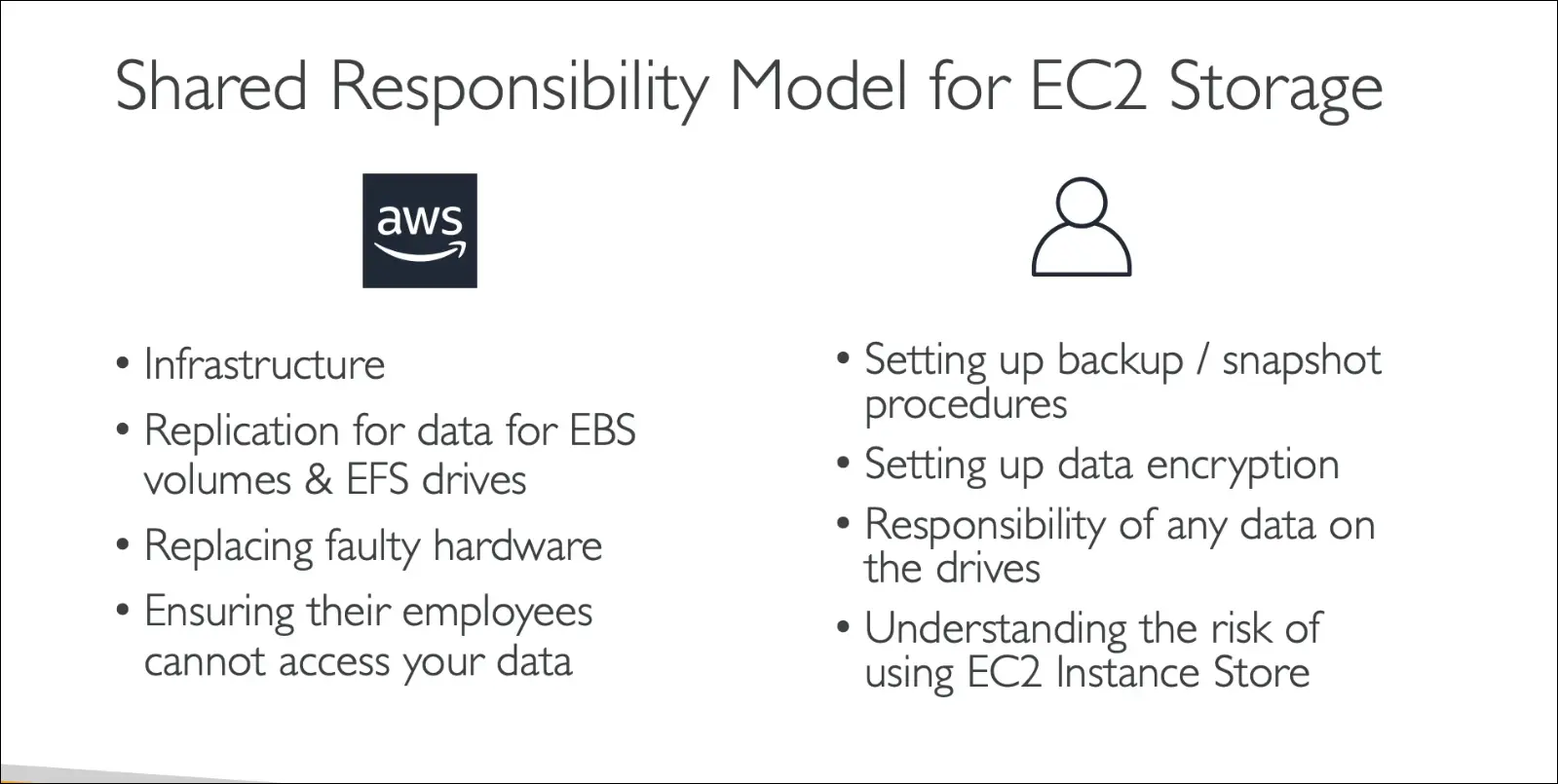
AWS Responsibilities
- Infrastructure & durability: Ensures data replication across hardware for EBS/EFS.
- Hardware replacement: Fixes failed disks, handles infrastructure failures.
- Data privacy: Prevents AWS employees from accessing your data.
Customer Responsibilities
- Backups & snapshots: Set up backup plans and snapshot procedures.
- Encryption: Enable encryption for extra security.
- Data management: Responsible for all data written to the disk.
- Instance Store usage:
- Data lost if instance is stopped or terminated.
- Must plan for backup of ephemeral storage.
✅ Exam takeaway:
- AWS secures the infra & replication, customers secure data, backups, encryption, and usage decisions.
Amazon FSx
- Managed third-party high-performance file systems on AWS.
- Alternative to EFS (Linux NFS) and S3 (object storage).
- Offers different flavors for specific workloads.
Main Flavors (for exam)
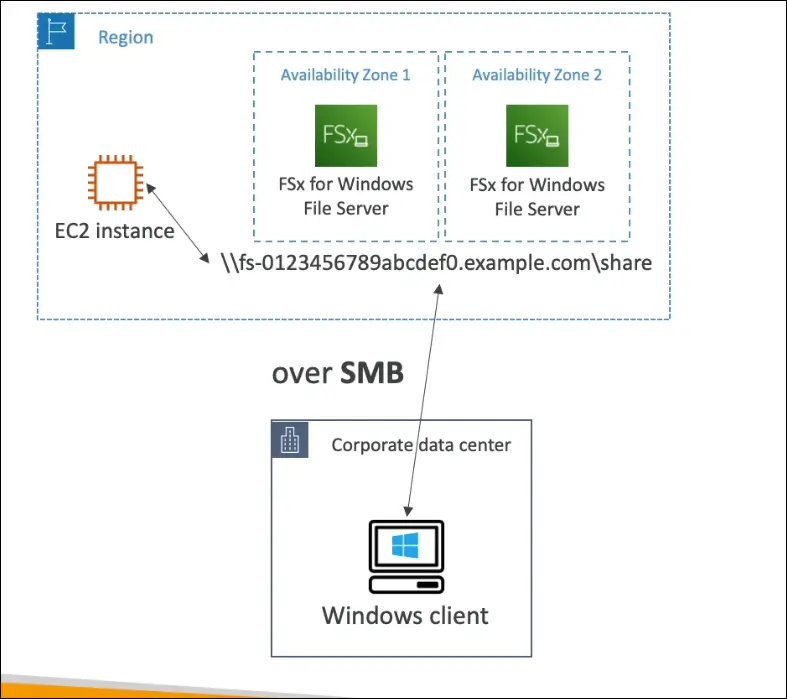
- FSx for Windows File Server
- Fully managed, Windows-native shared file system.
- Uses SMB protocol and NTFS.
- Supports Windows EC2 instances and on-premises clients.
- Integrated with Microsoft Active Directory.
- Deployed across multiple AZs for reliability.
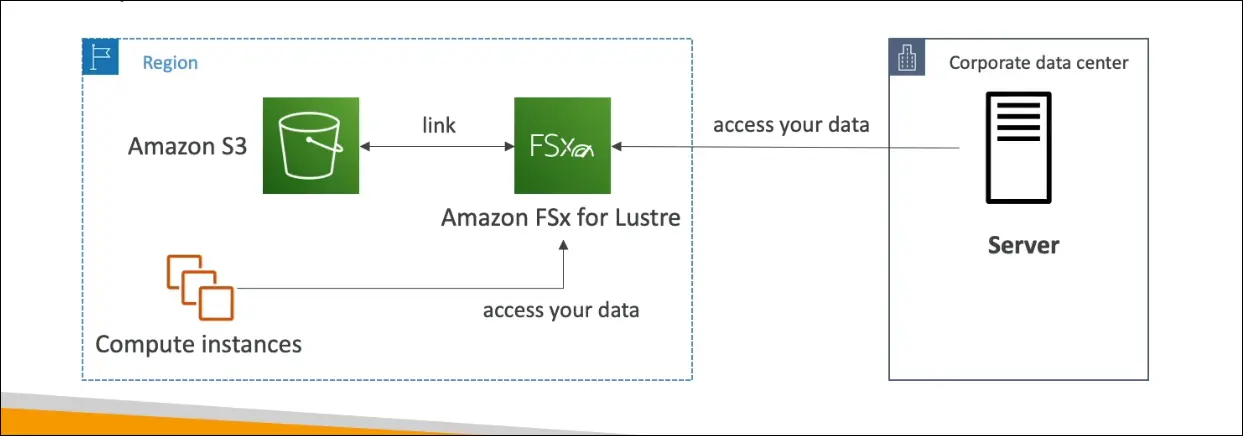
 2. FSx for Lustre
- Use cases: Machine Learning, Analytics, Video Processing, Financial Modeling.
- Features:
- Hundreds of GB/s throughput. - Millions of IOPS. - Sub-millisecond latency.
- Can connect to AWS compute instances or on-premises.
- Data can be linked to Amazon S3 buckets for backend storage.
Other flavors (FYI, not main exam focus)
- FSx for NetApp ONTAP
- FSx for OpenZFS
Exam Tips
- If question = Windows-native file sharing, SMB, NTFS, Active Directory → FSx for Windows File Server.
- If question = High performance computing, ML, analytics, financial modeling → FSx for Lustre.
✅ Key phrase: FSx = managed specialized file systems (Windows for SMB/NTFS, Lustre for HPC/ML).
Summary