IAM (Identity and Access Management)
What is IAM?
- IAM = Identity and Access Management.
- A global service in AWS (not region-specific).
- Used to manage users, groups, and permissions.
Root User
- Created by default when you make an AWS account.
- Has full access to everything.
- Should only be used for initial setup, not daily tasks.
- Best practice: never share or use root account for normal work.
Users and Groups
- User = one person in your organization.
- Groups = logical collection of users.
- Groups can only contain users (not other groups).
- A user can:
- Belong to no group (not recommended).
- Belong to multiple groups.
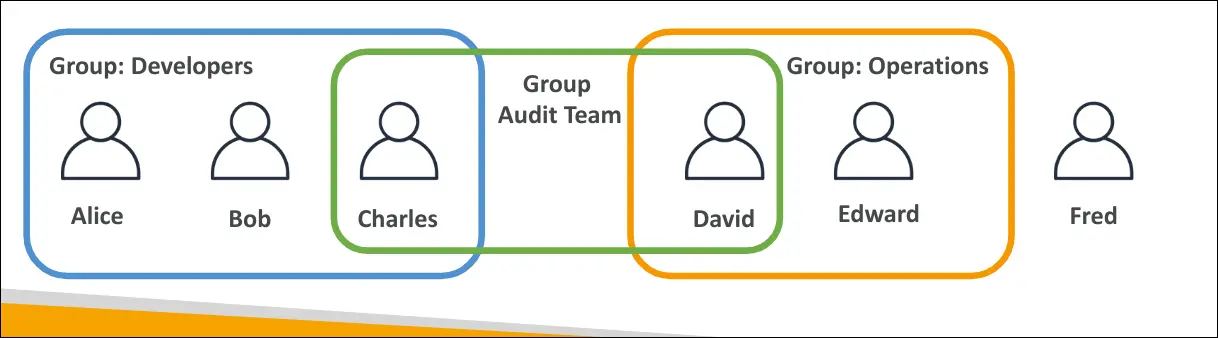
- Example:
- Developers group: Alice, Bob, Charles.
- Operations group: David, Edward.
- Charles + David also in Audit group.
Permissions via Policies
- Users or groups are assigned IAM Policies.
- Policy = JSON document that defines what actions are allowed on which resources.
- Policies are not programming, they’re descriptive rules.
- Example:
| |
Best Practices
- Apply the Principle of Least Privilege:
- Only grant the minimum permissions needed.
- Avoid giving full access to all users.
- Prevents misuse, high costs, and security risks.
IAM User Creation (Hands-on)
IAM is Global
- No region selection for IAM, users are available everywhere.
Why Create IAM Users?
- Root account = full access, risky for daily use.
- Best practice → create admin IAM user(s) instead of using root.
Steps to Create a User
- Go to IAM → Users → Add User.
- Give username (e.g.,
Stephane). - Enable console access with a password:
- Auto-generate for others (force password change).
- Custom password for yourself.
- Assign permissions via a group:
- Create
admingroup → attach AdministratorAccess policy. - Add user to this group.
- Create
- (Optional) Add tags like department.
- Review → create user → download CSV or email login details.
Group Permissions
- Users inherit permissions from their groups.
- Easier than attaching policies directly to each user.
Sign-In URL & Alias
- Each AWS account has a sign-in URL.
- Can customize with an account alias for simplicity.
Using IAM User
- Log in with IAM user credentials via sign-in URL.
- Use private/incognito window if you want root and IAM sessions simultaneously.
- Top-right corner shows if logged in as root (account ID only) or IAM user (ID + username).
Best Practice
- Always use IAM user for daily work.
- Keep root credentials safe and rarely used.
IAM Policies
Policy Assignment
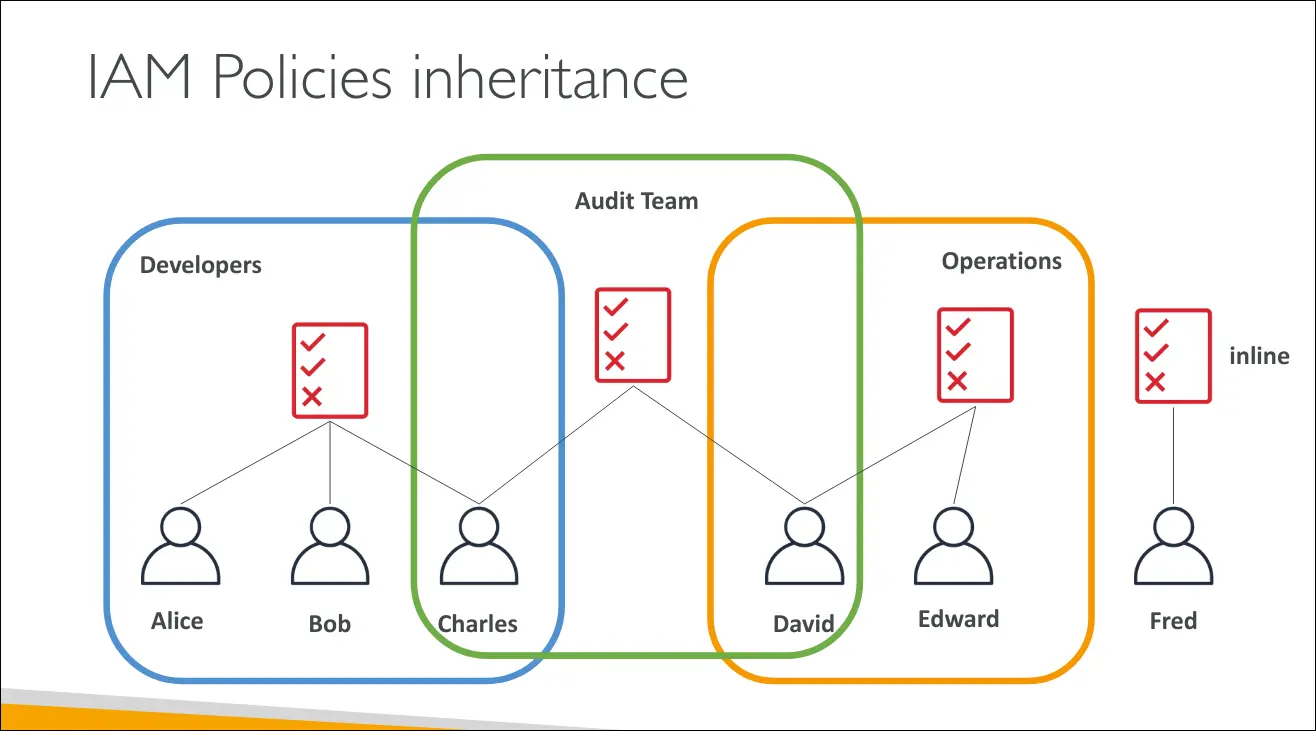
- Policies can be attached at:
- Group level → applies to all members (e.g., Developers group → Alice, Bob, Charles).
- User level (inline policies) → applied directly to one user.
- Multiple groups → a user can inherit policies from several groups.
Example:
- Charles (Developer + Audit group) = policies from both groups.
- David (Operations + Audit group) = policies from both groups.
Policy Structure (JSON format)
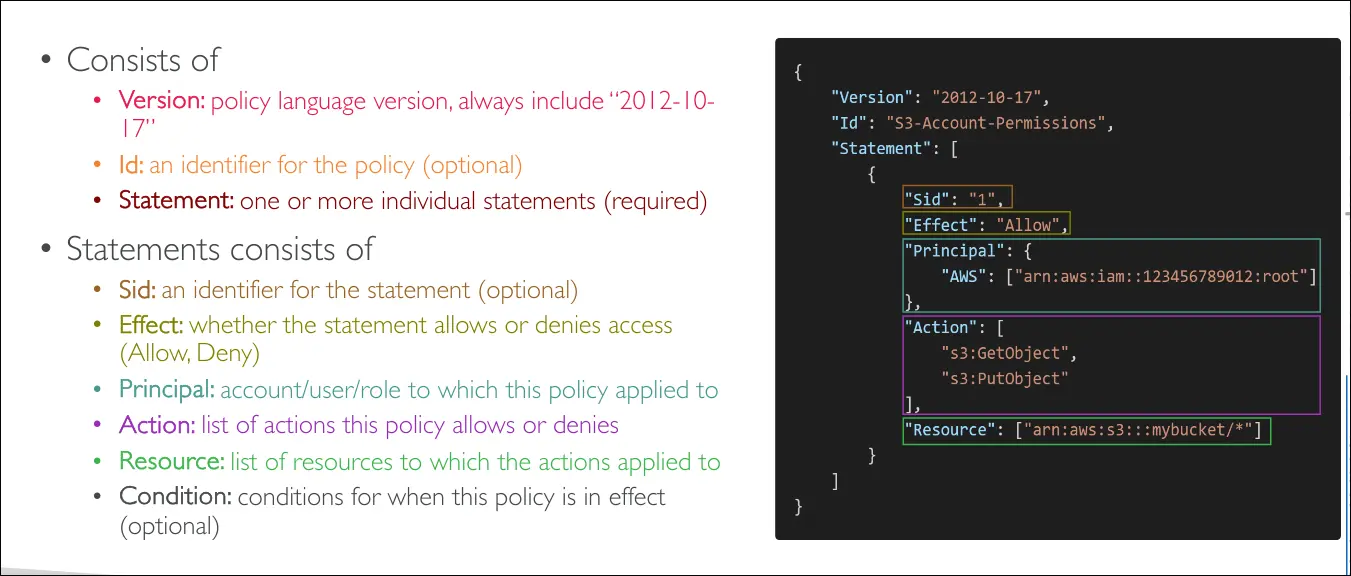
IAM policies are written in JSON and have these main parts:
- Version → policy language version (commonly
2012-10-17). - Id → optional identifier for the policy.
- Statement(s) → one or more rules, each with:
- Sid → optional statement ID.
- Effect →
AlloworDeny. - Principal → account/user/role the policy applies to.
- Action → API actions affected (e.g.,
s3:GetObject). - Resource → resource(s) the actions apply to (e.g., S3 bucket, EC2 instance).
- Condition → optional, specifies when the policy applies.
IAM Security: Password Policies & MFA
Why Secure Users and Groups?
- To prevent accounts from being compromised.
- Two main defense mechanisms:
- Password Policies
- Multi-Factor Authentication (MFA)
Password Policy in AWS
- Purpose: Stronger passwords = stronger security.
- Options you can configure:
- Minimum password length.
- Require specific character types:
- Uppercase letters
- Lowercase letters
- Numbers
- Non-alphanumeric (e.g.,
?,!)
- Allow or deny users to change their own passwords.
- Expire passwords after a set period (e.g., every 90 days).
- Prevent password reuse (users cannot set a previous password again).
➡️ Helps protect against brute force attacks.
Multi-Factor Authentication (MFA)
- Definition: Extra security layer requiring:
- Something you know (password)
- Something you have (security device)
- Strongly recommended for:
- Root account (mandatory)
- All IAM users
Example:
- Alice has a password + MFA token.
- Even if her password is stolen, her account is still safe without the device.
MFA Device Options in AWS
- Virtual MFA Device (most common)
- Apps: Google Authenticator, Authy.
- Multiple accounts/users supported (Authy makes it easier).
- U2F Security Key (physical device)
- Example: YubiKey by Yubico (third-party).
- One key supports multiple users (root + IAM).
- Hardware Key Fob MFA Device
- Example: Provided by Gemalto (third-party).
- GovCloud Special MFA
- For AWS GovCloud (US) users only.
- Provided by SurePassID (third-party).
Password Policy in AWS IAM
- Found under Account Settings → Password Policy.
- Options:
- Use default IAM password policy.
- Or customize policy:
- Minimum password length.
- Require uppercase, lowercase, numbers, special characters.
- Enable password expiration (e.g., 90 days).
- Decide if users can change their own password.
- Prevent password reuse.
- All this is editable directly in the IAM console.
- This is the first layer of account security.
Multi-Factor Authentication (MFA) for Root Account
- Root account = most important AWS account.
- Setup MFA:
- Add MFA device.
- Types of MFA:
- Authenticator app (e.g., Google Authenticator, Twilio Authy).
- Security key (e.g., YubiKey).
- Hardware TOTP token.
- Example shown: using an Authenticator App.
- Scan AWS QR code with the app.
- App generates rotating codes.
- Enter two consecutive codes in AWS to confirm setup.
- Up to 8 MFA devices can be added.
- After setup:
- On login, AWS asks for MFA code after password.
- Adds an extra security layer.
Warning: If you lose your MFA device, you might be locked out. Best to be careful.
3 Ways to Access AWS
AWS Management Console
- Web interface (what we’ve been using so far).
- Secured by:
- Username + Password
- Possibly MFA (Multi-Factor Authentication).
AWS CLI (Command Line Interface)
- Tool installed on your computer/terminal.
- Secured by Access Keys:
- Access Key ID = like username.
- Secret Access Key = like password.
- Do not share keys; each user can generate their own.
- Generated in the Management Console → Create Access Keys.
- Keys must be downloaded immediately after creation.
- CLI allows you to:
- Interact with AWS APIs directly.
- Run commands, e.g.,
aws s3 cp .... - Write scripts to automate tasks.
- CLI is open-source (code on GitHub).
- Some people use only CLI, never the console.
AWS SDK (Software Development Kit)
- A language-specific library for embedding AWS into your code.
- Allows apps to programmatically call AWS APIs.
- Supports many languages:
- JavaScript, Python (Boto3), Java, Go, PHP, Ruby, .NET, C++, Node.js.
- Mobile SDKs (Android, iOS).
- IoT SDKs (for connected devices like sensors, locks, etc).
- Example: The AWS CLI itself is built on the AWS SDK for Python (Boto).
Key Security Point
- Access Keys = very sensitive (like password).
- Treat Access Key ID like username, Secret Access Key like password.
- Never share with colleagues; they can create their own.
Installing AWS CLI on Linux
There are two common ways to install AWS CLI on Linux:
Method 1: Official AWS CLI v2 Installer
This works on most Linux distributions.
- Download the installer (zip file):
| |
- Unzip the installer:
| |
- Run the installer as root:
| |
- Verify the installation:
| |
You should see something like:
| |
Method 2: Arch Linux (Pacman)
On Arch Linux, you can directly install it with pacman:
| |
This installs the latest packaged version from the Arch repositories.
Verify installation:
| |
AWS CloudShell
- A browser-based shell that lets you run AWS CLI commands without local setup.
- Accessible from the AWS Management Console (top-right icon).
- Free to use.
Availability
- Not available in all AWS regions.
- To use it, select a region where CloudShell is supported.
Features
- Pre-installed AWS CLI
- AWS CLI v2 is already installed and ready to use.
- Credentials are automatically provided (no need to configure
aws configure). - Default region is the same as the console region you are logged into.
- File Persistence
- Files created in CloudShell persist across sessions.
- Example:
echo "test" > demo.txt→ the file remains after restarting CloudShell.
- Customization
- Can adjust font size (small, medium, large).
- Can switch between light/dark theme.
- Option for safe paste.
- File Management
- Download files from CloudShell to your computer.
- Upload files into CloudShell for use.
- Multi-Tab & Splits
- Open multiple tabs.
- Split the screen into columns for running parallel sessions.
Usage
- Run AWS CLI commands just like in your local terminal.
- Example:
aws iam list-users→ returns API results using your AWS account credentials. - Works the same as the terminal you configured earlier, but managed in the cloud.
IAM Roles
- IAM Roles are like users but not meant for people.
- They are designed for AWS services to perform actions on your behalf.
- Roles contain permissions policies that define what actions the service can perform.
Why Roles?
- Some AWS services need permissions to access other AWS resources.
- Instead of assigning long-term credentials, you attach an IAM Role.
- This allows secure, temporary access.
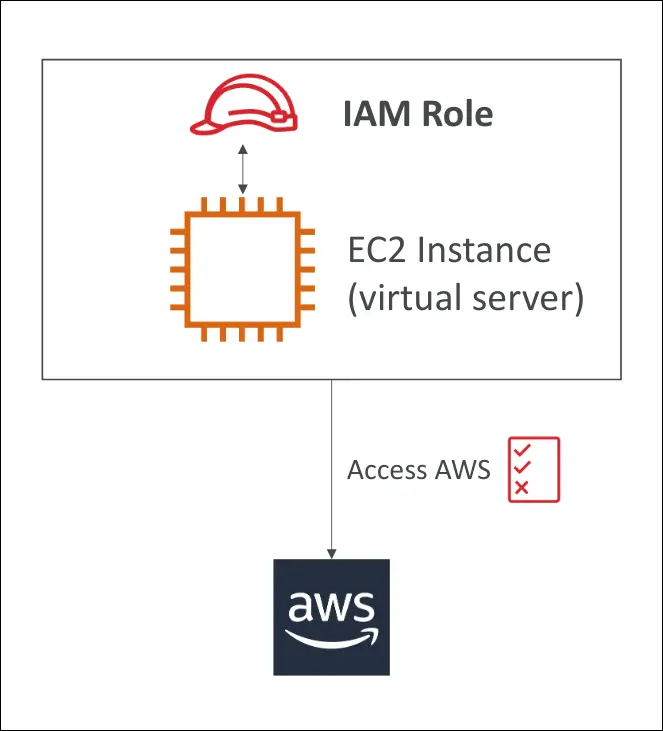
Example:
EC2 Instance + IAM Role:
- EC2 needs to read data from S3.
- You attach an IAM Role to the EC2 instance.
- The role has the necessary permissions (e.g., S3 read).
- EC2 uses the role automatically when making requests.
Common IAM Roles
- EC2 Instance Role – Grants permissions for EC2 instances.
- Lambda Function Role – Allows Lambda functions to access AWS resources.
- CloudFormation Role – Grants permissions for CloudFormation to create/manage resources.
Key Points
- Roles = permissions for AWS services (not users).
- Services assume the role to get temporary credentials.
- IAM Roles are central for secure automation and service-to-service communication.
IAM Security Tools
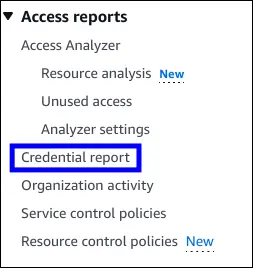
IAM Credentials Report (Account-level)
- A report generated at the account level.
- Contains all IAM users in the account.
- Shows the status of their credentials (passwords, access keys, MFA, etc).
- Useful for auditing security at a high level.
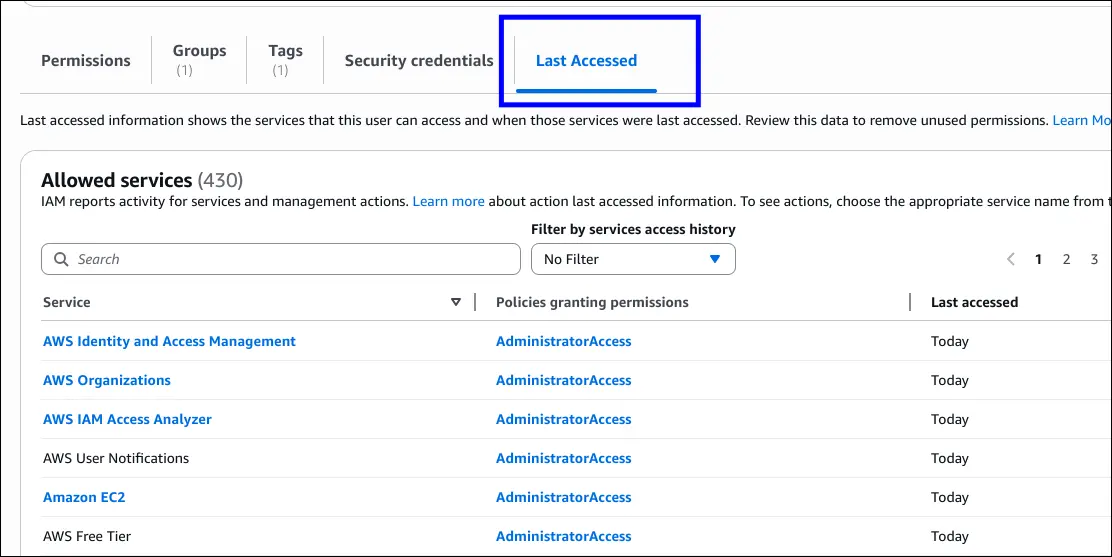
IAM Access Advisor/Last Accessed (User-level)
- Available at the individual user level.
- Shows:
- Which services the user has permissions for.
- When those services were last accessed.
- Helps apply the Principle of Least Privilege:
- Identify unused permissions.
- Remove unnecessary access.
Key Takeaways
- Credentials Report = Audit all users’ credentials in the account.
- Access Advisor = Review a single user’s service usage.
- Together, they improve security and compliance.
IAM Best Practices
1. Root Account
- ❌ Do not use the root account, except for initial setup.
- You should now have:
- Root account (for emergencies and setup)
- Your own personal IAM user account
2. Users and Groups
- One AWS user = one physical person.
- If a friend/colleague needs AWS access → create a separate IAM user for them.
- Use groups to manage permissions collectively.
- Apply permissions at the group level (not individual users).
3. Security Best Practices
- Create and enforce a strong password policy.
- Enable MFA (Multi-Factor Authentication) for stronger security.
4. Roles and Permissions
- Use IAM Roles to grant permissions to AWS services.
- Example: EC2 instances should use roles to access other AWS services.
5. Programmatic Access
- When using AWS CLI or SDKs, you need Access Keys.
- Access keys = like passwords → keep them secret and do not share.
6. Managing and Auditing Access
- Use:
- IAM Credential Reports – overview of all IAM users and their credentials.
- IAM Access Advisor – shows permissions actually used by users.
7. Golden Rule 🚨
- ❌ Never share IAM user credentials or access keys.
Shared Responsibility Model – IAM Context
Exam Relevance
- ❗ Expect many questions on the Shared Responsibility Model in the AWS CCP exam.
- Goal: Know what AWS is responsible for vs. what you are responsible for.
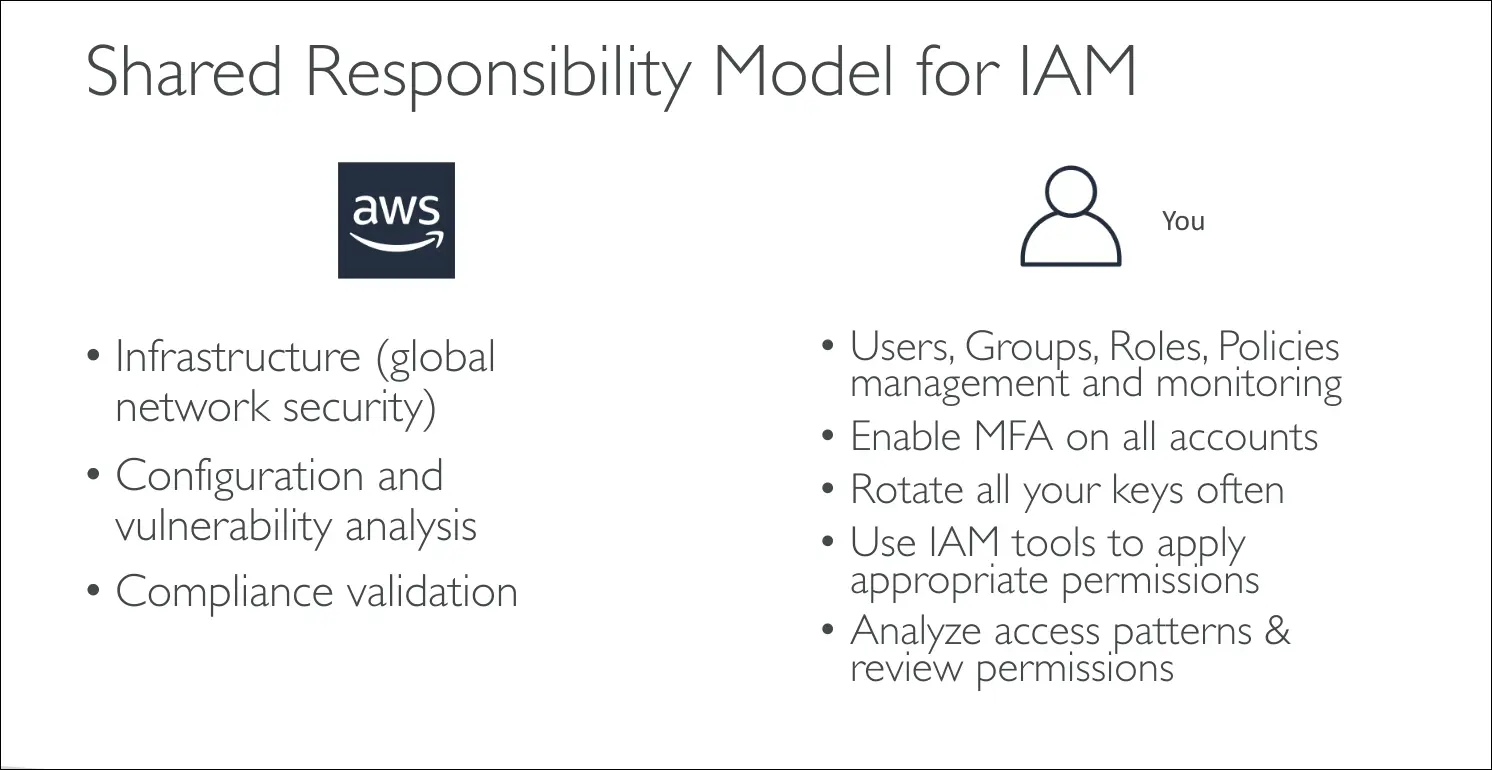
AWS Responsibilities
AWS handles everything about the infrastructure:
- Global infrastructure security (data centers, hardware, networking).
- Configuration and vulnerability management of AWS-managed services.
- Compliance (certifications, audits, etc.).
Customer (Your) Responsibilities
You must secure how you use AWS services:
- Identity & Access Management (IAM):
- Create and manage users, groups, roles, and policies.
- Manage and monitor those permissions.
- Multi-Factor Authentication (MFA):
- Enable and enforce MFA on accounts.
- Access Keys:
- Rotate keys regularly.
- Protect them from exposure.
- Permissions Management:
- Apply least-privilege policies.
- Use IAM tools (Access Advisor, Credential Reports).
- Monitoring & Auditing:
- Analyze access patterns.
- Review and adjust permissions periodically.
Core Principle
- AWS: Secures the infrastructure.
- You (the customer): Secure how you use that infrastructure.
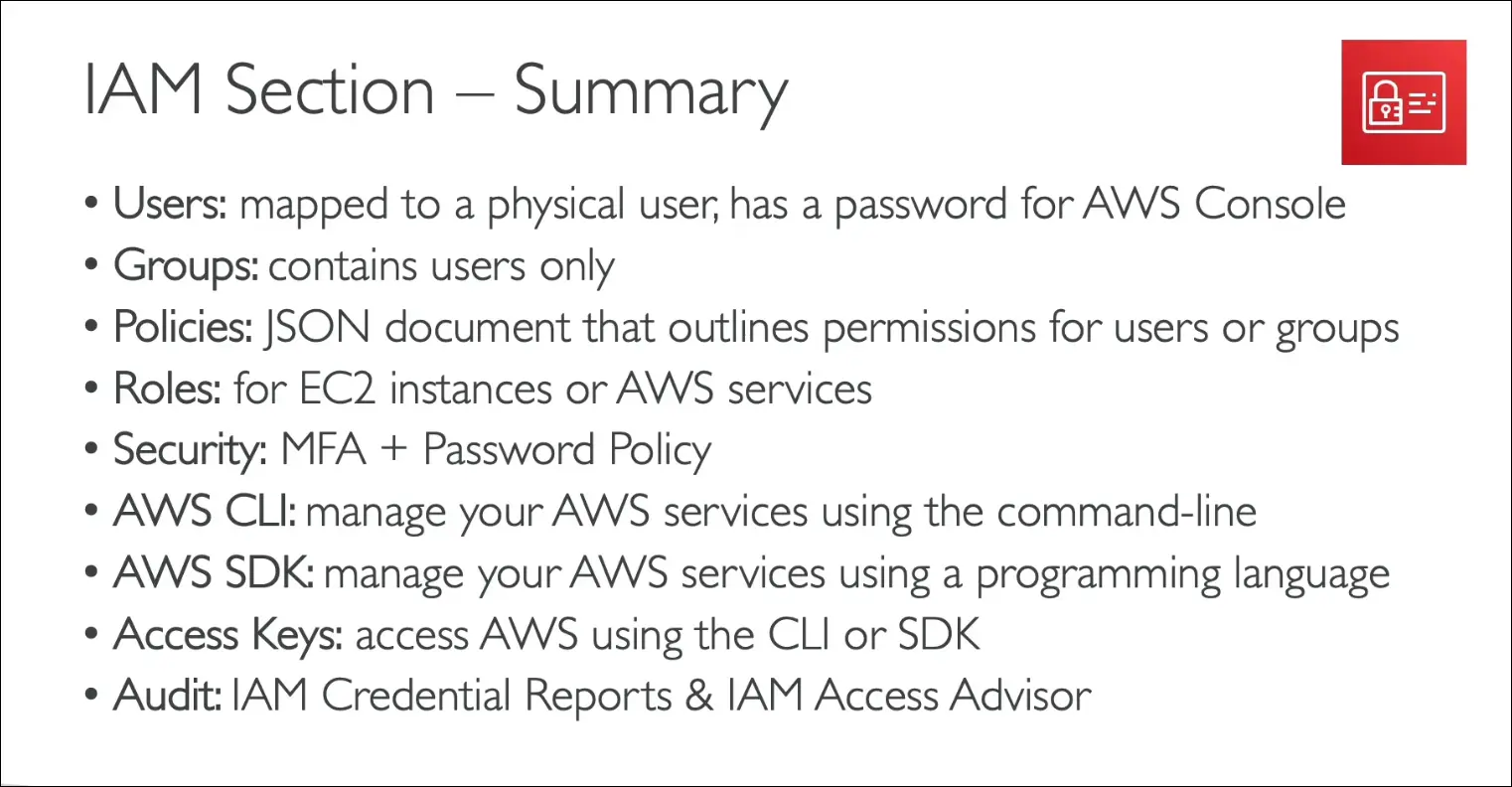
IAM Summary – AWS CCP
IAM Users
- Each IAM user = one physical person.
- User has a password to access the AWS Management Console.
IAM Groups
- Users can be grouped.
- Policies (JSON documents) can be attached to users or groups.
IAM Policies
- JSON document that outlines permissions for users or groups
IAM Roles
- Special identities for AWS services (e.g., EC2 instances).
- Used to grant permissions without storing permanent credentials.
Security Enhancements
- MFA (Multi-Factor Authentication): Adds extra protection.
- Password policies: Enforce strong passwords for all users.
Access Methods
- CLI (Command Line Interface): Manage AWS services via terminal.
- SDK (Software Development Kit): Manage AWS services via programming.
- Access Keys: Required for CLI and SDK, act like secret credentials.
Auditing & Monitoring
- IAM Credentials Report: Lists all users and credentials.
- IAM Access Advisor: Shows which services users have accessed, helps refine permissions.